
How to Make a Day in the Life Video on iPhone
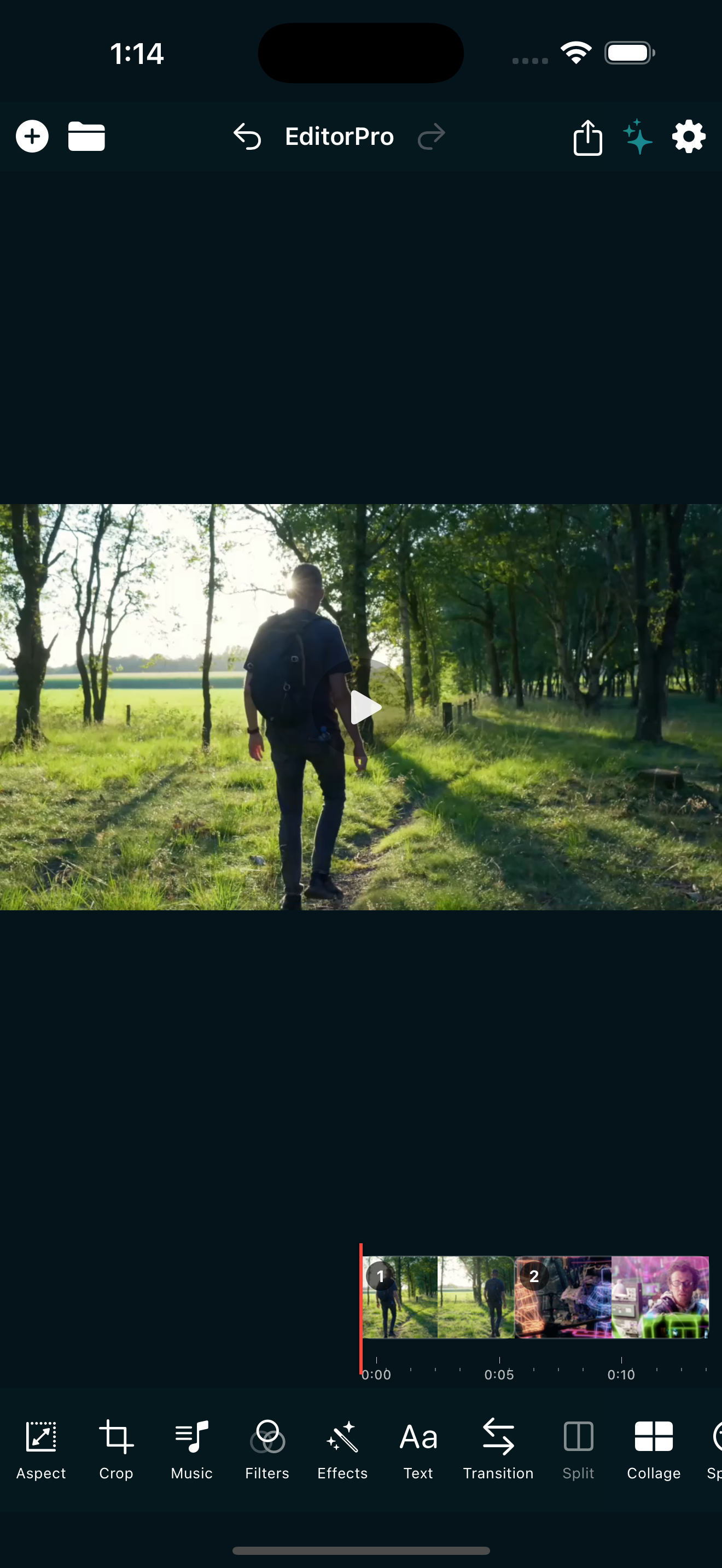
A day in the life video is one of the most popular formats on Reels and TikTok right now. It is simple, relatable, and surprisingly fun to make. The idea is straightforward: film short clips throughout your day, then stitch them together into a 30 to 60 second video that captures the rhythm of your routine.
You do not need a professional camera or a desktop editor. Your iPhone is enough, and the whole process from shooting to posting can happen in one sitting. Here is how to do it.
1. Shoot in short clips
The biggest mistake people make is filming one long video and hoping to cut it down later. Instead, film 10 to 20 short clips, each 3 to 10 seconds long. Capture the moments that tell the story of your day: your morning coffee, the commute, a work task, lunch, an evening walk, winding down at home.
A few shooting tips:
- Hold the phone vertically if you are posting to Reels or TikTok. Vertical video (9:16) fills the screen and performs better than horizontal video with black bars.
- Catch the details. A close-up of your coffee pouring, your keyboard as you type, or your shoes on a walk adds texture that a wide shot cannot.
- Get a mix of motion and stillness. A clip of you walking, then a clip of a stationary object, creates rhythm when you edit.
- Do not overthink it. The charm of a day in the life video is that it is real, not staged.
2. Import and set your aspect ratio
Open EditorPro and tap the plus button to import your clips. You can add up to 10 items at a time, so if you shot more, just import in batches and keep adding.
Once your clips are on the timeline, set the aspect ratio to 9:16 (Portrait). This is the standard for Reels, TikTok, and YouTube Shorts. Tap Aspect in the bottom tool strip and select Portrait (9:16). If some of your clips were shot horizontally, use the Blur Background fill mode so they fill the vertical frame without cropping awkwardly.
3. Trim to the good parts
A day in the life video lives or dies on pacing. Every clip should be 2 to 4 seconds in the final cut. Go through each clip and trim the dead air at the start and end. Tap a clip and drag the trim handles to tighten it up. If a clip has a moment buried in the middle, use Split to cut it out and delete the parts you do not need.
The goal is momentum. If a clip feels slow, it probably is. Cut it shorter or remove it entirely. A 40 second video with 15 tight clips will always beat a 90 second video that drags.
4. Add transitions between clips
Transitions help the video feel like a continuous flow rather than a slideshow. You do not need one between every clip. A simple Cross Dissolve on most cuts keeps things smooth, and a Whip Pan or Zoom In on a couple of scene changes adds energy without being flashy.
To add a transition, tap a clip, then tap Transition. Pick Transition In or Transition Out, choose a style, and set the duration. The default 1 second works for most clips, but you can shorten it to 0.5 seconds for a faster feel.
5. Pick a filter that matches the mood
A consistent color look ties your clips together and makes the video feel intentional. For a day in the life video, you want something subtle that does not distract from the content.
Tap Filters in the bottom tool strip and browse the categories. A few that work well for this format:
- Clean Look (Modern/Trending) for a natural, polished feel.
- Story Glow (Social) for a warm, Instagram-friendly look.
- Moody (Mood) for a more cinematic, atmospheric vibe.
- Viral Glow (Modern/Trending) for a brighter, more shareable aesthetic.
Use the intensity slider to dial it back if the effect is too strong. You can also toggle the scope to apply the filter to all clips at once, which keeps the look consistent across the whole video.
6. Add music
Music is what turns a sequence of clips into a video people want to watch. Tap Music in the bottom tool strip and switch to Background Music. EditorPro includes 9 background music tracks you can use without worrying about licensing.
For a day in the life video, pick something with a steady tempo that matches the energy of your day. Upbeat Vibes 1 or Reel Upbeat work for an energetic day. Fresh Couple Romance or Romantic Guitar suit a slower, cozy day. Set the music volume so it sits underneath your clips without overpowering them, and add a fade out at the end so it does not cut abruptly.
If any of your clips have audio you want to keep (a conversation, a street sound), use the per-clip volume control to balance it with the music. You can also mute clips that have nothing useful in their audio track.
7. Add text for context
A few text overlays help orient the viewer. A timestamp at the start of each section ("7:00 AM", "12:30 PM", "6:00 PM") gives structure without being heavy. Tap Text in the bottom tool strip, type your label, and pick a style that is easy to read on a phone screen.
Keep text short. A word or two is enough. Position it in the upper third of the frame so it does not get covered by platform UI when you post. Set a start time and duration so each text overlay appears and disappears naturally as the clip plays.
8. Speed up the slow parts
Some moments look better in time-lapse: a sunset, a long walk, preparing a meal. Select those clips and tap Speed to bump them to 1.5x or 2x. A sped-up clip in the middle of normally paced footage creates a nice contrast and keeps the video moving.
You can also slow a clip down to 0.5x for a brief dramatic moment, like a close-up of your coffee pouring or a pet doing something funny. The key is variety: not everything should be the same speed.
9. Export and share
When your edit feels good, tap the share icon in the top toolbar. Choose 1080p HD for the best balance of quality and file size. If you want maximum quality and you are on Pro, 4K Ultra is available too.
Free exports include a small watermark in the bottom right corner. If you post regularly, upgrading to Pro removes the watermark and unlocks 4K, unlimited Auto Reel, and the AI assistant with no message cap. Pro is $2.99 per month or $14.99 per year with a 7-day free trial on the annual plan.
The exported video saves straight to your Photos library, ready to share to Reels, TikTok, Shorts, or anywhere else.
Quick checklist
- Film 10 to 20 short vertical clips throughout your day.
- Import them and set the aspect ratio to 9:16.
- Trim each clip to 2 to 4 seconds.
- Add subtle transitions between scene changes.
- Apply one filter across all clips for a consistent look.
- Add background music with a fade out at the end.
- Use text overlays for timestamps or labels.
- Speed up slow moments for contrast.
- Export at 1080p and share.
The beauty of a day in the life video is that the content does the heavy lifting. You are not trying to tell a complex story or hit a viral hook. You are just showing a real day, edited with enough pace and polish that people want to watch it all the way through. Once you do one, the next one gets faster, and before long it becomes a format you can produce in under 15 minutes.
Start your first day in the life video
EditorPro gives you everything you need on iPhone: trimming, filters, transitions, music, text, and clean exports. Free to download, made for short-form video.
Download on the App Store