
How to Make a TikTok Video on iPhone
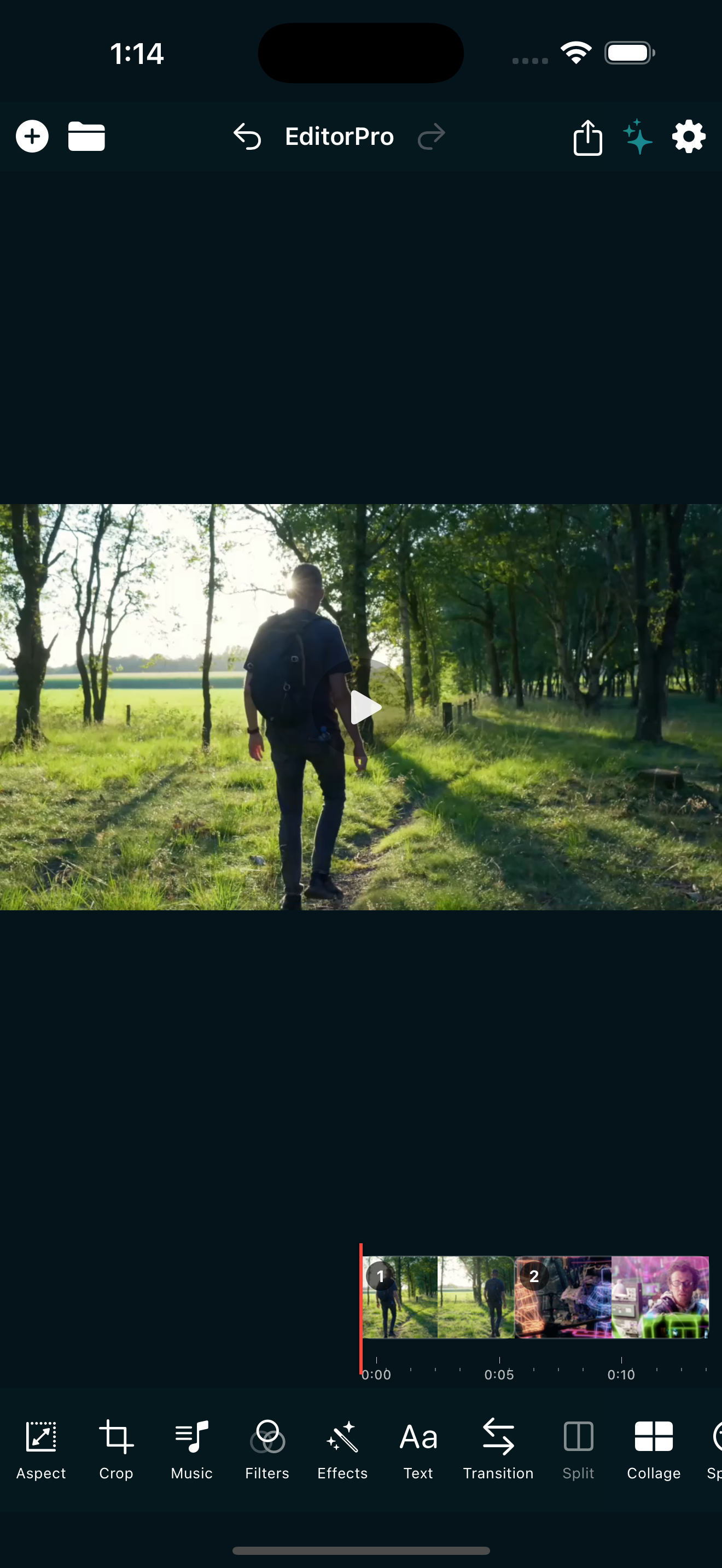
TikTok rewards videos that fill the screen, move to a beat, and look polished without looking overproduced. You do not need a desktop editor or a paid subscription to get there. Your iPhone has everything you need, and a good mobile editor handles the parts that take time: aspect ratio, filters, transitions, text, and audio.
Here is a complete workflow for making a TikTok video on iPhone, from import to export, using features that are all available in a free editor.
Step 1: Set up a vertical canvas
TikTok is a vertical platform. If your video has black bars on the sides, it looks unfinished. Start by creating a new project and setting the aspect ratio to 9:16 (Portrait) before you import anything.
- Open EditorPro and create a new project.
- Tap Aspect in the bottom tool strip.
- Select Portrait (9:16). This gives you the full-screen vertical canvas TikTok expects.
If your source clips were shot horizontally, choose a fill mode to handle the empty space. Blur Background fills the bars with a soft, blurred version of your video, which looks intentional and clean. Zoom to Fill crops in to fill the frame, which works well if your subject stays centered.
Step 2: Import and arrange your clips
Tap the + button in the top bar to import photos and videos. You can add up to 10 items at a time, and photos automatically become 5-second clips. Drag clips to reorder them by long-pressing and dragging in the Clip Manager.
Once your clips are on the timeline, trim the fat. Tap a clip and drag the handles to set tight in and out points. TikTok viewers decide in the first two seconds whether to keep watching, so cut anything that does not move the video forward. If a clip is too long, use Split to cut it at the playhead and delete the part you do not need.
Step 3: Pick a TikTok-tuned filter
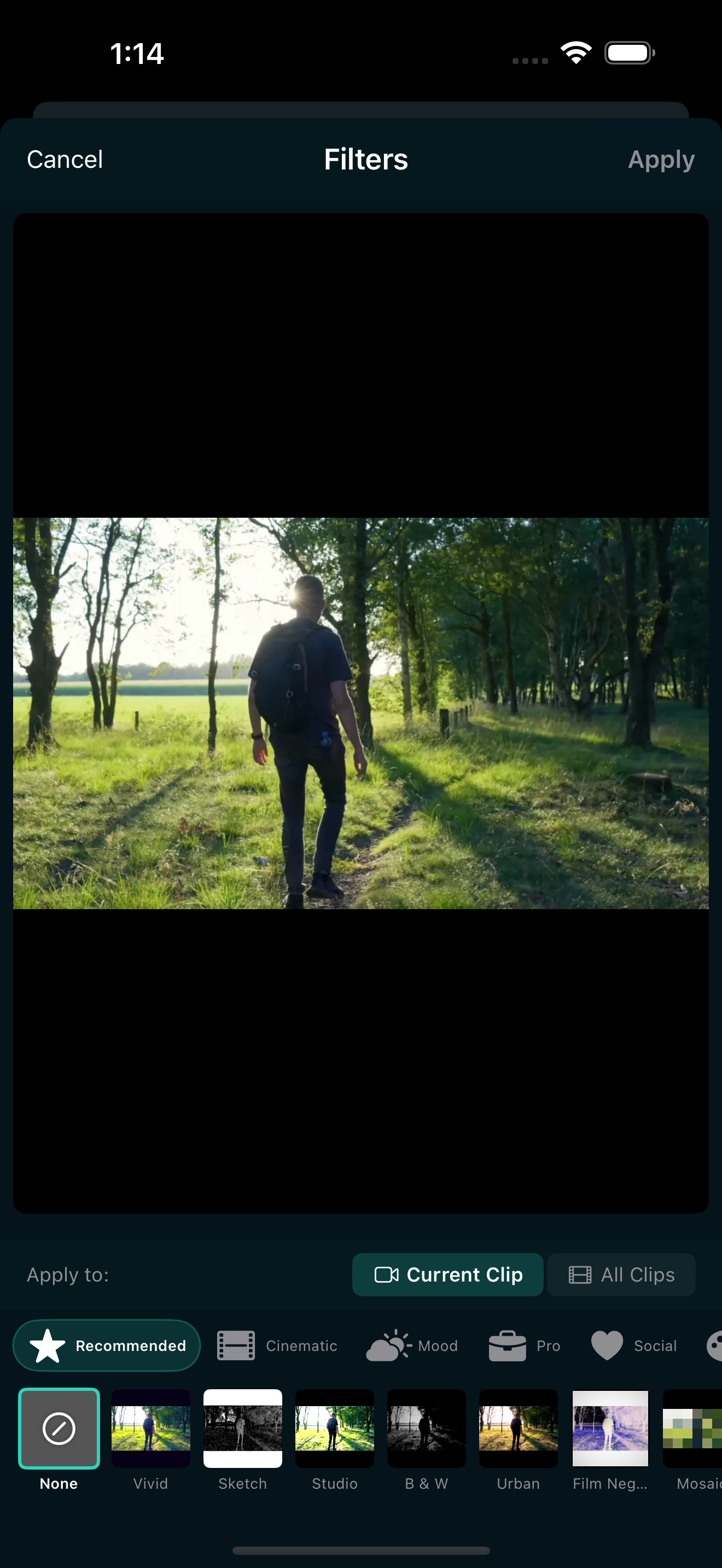
Filters are the fastest way to give your video a consistent look. EditorPro has 138 filter presets, and several are built specifically for social platforms.
Tap Filters in the bottom tool strip and browse the Social category. Three presets are tuned for TikTok:
- TikTok Vibrant: punchy, saturated colors that pop on the feed.
- TikTok Soft: a gentler grade that flatters skin tones and works well for lifestyle and beauty content.
- TikTok Vibes: a modern, slightly moody look from the Trending category.
Each filter has an intensity slider from 0 to 100 percent. Start at the default and dial it back if the look feels too strong. You can apply a filter to the current clip or toggle the scope to apply it across all clips for a consistent grade.
Step 4: Add transitions between clips
Transitions keep the energy up between cuts. Tap Transition in the bottom tool strip and choose Transition In or Transition Out. You can set a duration (the default is 1.0 second) and apply to one clip or all clips at once.
For TikTok, the transitions that work best are fast and punchy:
- Whip Pan (Left, Right, Up, Down): great for fast cuts between scenes.
- Zoom In / Zoom Out: adds energy without being distracting.
- Glitch: perfect for music-driven content and beat-sync edits.
- Light Leak: soft and dreamy, works for lifestyle and travel clips.
- Cross Dissolve: the safe default when you want smooth, invisible cuts.
Keep transition durations short for TikTok. A 0.3 to 0.5 second transition feels snappy. Anything longer than a second can drag on a fast-paced feed.
Step 5: Layer effects for extra punch
Effects sit on top of your clips and can be timed to start and end at specific points. Tap Effects in the bottom tool strip. You can add up to 5 effects per clip.
Popular TikTok effects include:
- Shake: adds a camera shake that works well on drops and impacts.
- Zoom In / Zoom Out: punch-in effects for emphasis.
- RGB Split: a glitchy chromatic split that pairs with the Glitch transition.
- VHS: retro tape look for nostalgic content.
- Prism: a light-bending look for dreamy, aesthetic clips.
Use the start and end timing on each effect to trigger it on a beat or a key moment, then let it fade. Effects are best when the viewer notices them for a split second, not when they linger.
Step 6: Add text and captions
Text overlays keep viewers watching, especially with sound off. Tap Text in the bottom tool strip, type your text, and pick from 13 styles. For TikTok, a few work especially well:
- Neon and Neon Pink: eye-catching for bold, punchy content.
- Highlight: great for captions and subtitles.
- Typewriter: reveals text one character at a time, which keeps attention.
- Shadow: clean and readable for longer text.
Drag to position, pinch to resize, and two-finger rotate. Set a start time and duration so the text appears only when it is relevant. You can add up to 50 text overlays in a single project.
Step 7: Add music and sound effects
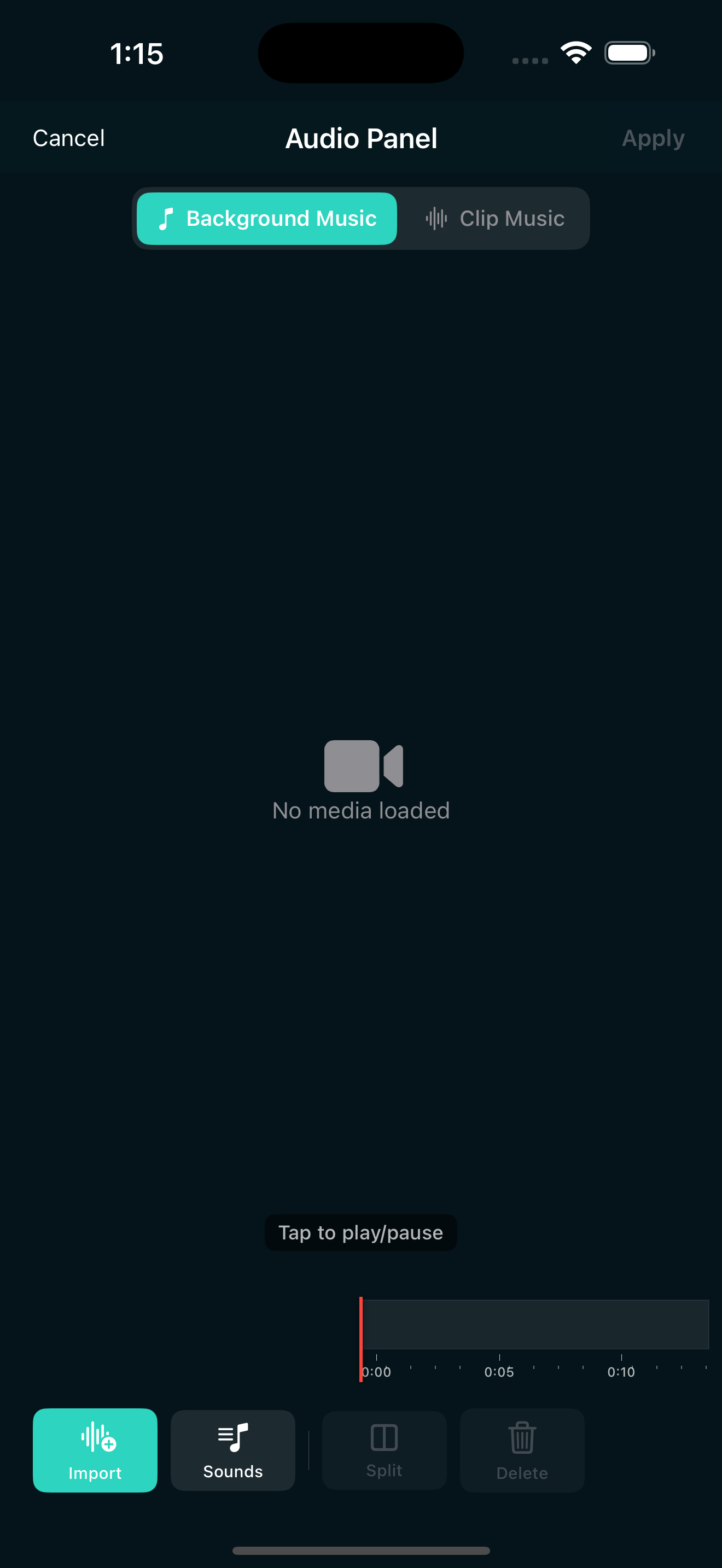
Audio is what makes TikTok feel like TikTok. Tap Music in the bottom tool strip to open the audio panel. You can keep the audio from your original clips, mute clips that have unwanted sound, and add background music.
EditorPro includes 9 background music tracks and 44 sound effects. For TikTok, try the Reel Upbeat or Upbeat Vibes tracks for energetic content, or Romantic Guitar for softer, emotional clips. Adjust the music volume so it sits under any voice audio in your clips.
If you want to add a sound effect, like a whoosh or a ding to mark a transition, browse the built-in library and tap to add it to a clip. Each clip has its own volume control, so you can balance everything precisely.
Step 8: Export and share
When your edit is ready, tap the share icon in the top toolbar. Choose a quality tier:
- Web Share (1280x720, 3 Mbps): smallest file, fastest export.
- 720p HD (1280x720, 5 Mbps): a step up in quality.
- 1080p HD (1920x1080, 10 Mbps): the sweet spot for TikTok. Crisp, clear, and not too large.
- 4K Ultra (3840x2160, 35 Mbps): Pro only. Overkill for TikTok, but useful if you want to future-proof or crop in later.
Free exports include a small watermark in the bottom-right corner. If you post frequently, upgrading to Pro removes the watermark and unlocks 4K. Pro is $2.99 per month or $14.99 per year with a 7-day free trial on the annual plan.
Once the export finishes, the video saves to your Photos library. Open the TikTok app, select the video, add your caption and hashtags, and post.
Quick tips for better TikTok videos
- Keep it under 30 seconds. Shorter videos get more replays, and replays signal the algorithm to push your video harder.
- Front-load the hook. Put your best moment, funniest line, or most interesting visual in the first two seconds.
- Use one filter for consistency. Apply a single filter to all clips instead of mixing looks. A consistent grade makes a video feel intentional.
- Match cuts to the beat. Split your clips at points where the music hits, and add transitions on those cuts. It makes the video feel like it was made for the song.
- Add captions for sound-off viewers. Many people scroll TikTok with sound off. A few text overlays keep them watching even in silence.
Make your next TikTok on iPhone
EditorPro gives you the vertical canvas, TikTok-tuned filters, transitions, effects, and audio tools to make a polished TikTok video without leaving your phone. Free to download, made for iPhone.
Download on the App Store