
How to Add Music to a Video on iPhone
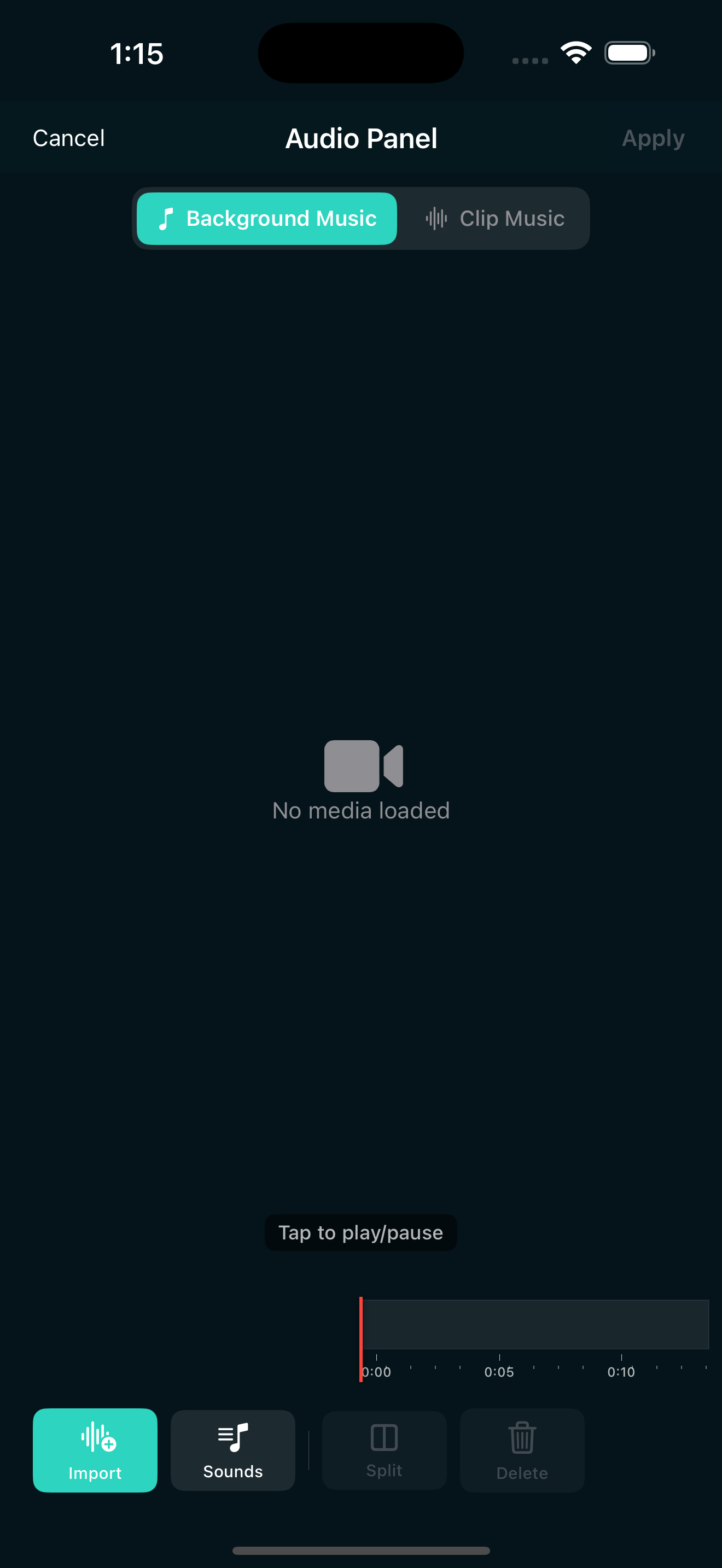
A video without music feels incomplete. Whether you are making a Reel, a TikTok, or a short clip for friends, the right audio transforms a flat sequence of clips into something people actually watch to the end. If you have ever wondered how to add music to a video on your iPhone without needing a desktop editor, this guide walks you through it step by step.
What you can do with audio on iPhone
When people say "add music to a video," they usually mean one of two things: putting a background track under the whole clip, or dropping in short sound effects at specific moments. Both are important, and a good mobile editor handles them separately.
Background music sets the overall tone. It plays underneath your video and fills gaps between clips. Sound effects, on the other hand, are quick hits: a whoosh on a transition, a ding on a text pop-up, a riser that builds tension before a drop. The best short-form videos use both.
How to add background music in EditorPro
EditorPro has a built-in audio library that includes background tracks and sound effects, so you do not need to import anything from outside unless you want to. Here is how to add a background track:
- Open your project and tap the Music tool in the bottom strip.
- Switch to Background Music at the top of the panel. You will see nine built-in tracks, each with a waveform preview.
- Preview a track by tapping it. The tracks span different moods: upbeat, romantic, mysterious, electric, and more. Pick one that fits the feel of your video.
- Tap to add it. The track drops into the audio lane below your clips, aligned to the start of the first gap in your timeline.
- Adjust the position by dragging the audio block left or right along the timeline.
- Set volume and fades. Tap the track to bring up volume controls. You can lower or raise the background music level, and set fade in and fade out so the track does not cut abruptly.
The background music volume is independent from your clip audio, which means you can lower the music when someone is speaking and bring it back up during silent gaps. This kind of ducking makes your video sound polished rather than cluttered.
How to add sound effects
Sound effects live in the same Music panel, under the Clip Audio tab. EditorPro includes 44 short sound effects organized into categories:
- Clicks and Dings for UI-style hits and notifications.
- Impacts like underwater explosions and riser hits for dramatic moments.
- Transitions such as cinematic risers and orchestral swells that pair well with video transitions like Cross Dissolve or Glitch.
- Whooshes for fast camera moves, whip pans, and swipe-style transitions.
- Miscellaneous effects like camera flash, glitch, crowd laugh, rain and thunder, and more.
To add a sound effect, position the playhead where you want the effect to land, then tap the effect in the list. It gets placed at that point on the timeline. You can adjust its volume or delete it the same way you would handle any clip.
Managing clip audio alongside music
Your video clips already have their own audio, and you have full control over it. In the Clip Audio section, you can:
- Mute a clip entirely if you only want the background track playing.
- Adjust per-clip volume so a talking clip is loud and a b-roll clip is quiet.
- Keep original audio when it matters, like speech or ambient sound, and mute the clips where it does not.
The balance between clip audio, background music, and sound effects is what separates a video that sounds professional from one that sounds muddy. As a rule of thumb, your background music should sit underneath everything else. Lower its volume to around 30 to 50 percent, let speech or important clip audio sit on top, and use sound effects as punctuation rather than constant noise.
Pairing music with transitions and effects
Audio works best when it syncs with what the viewer sees. Here are a few combinations that consistently work well:
- Whoosh sound + Whip Pan transition. A fast directional transition feels empty without audio. Drop a whoosh effect right where the transition lands.
- Riser + zoom-in effect. A cinematic riser building under a Zoom In effect creates anticipation before a reveal.
- Glitch sound + Glitch transition. The VHS or RGB Split effect on the visual side pairs naturally with a glitch or scan-line sound.
- Ding + text overlay. Add a ding or notification sound right when a text caption appears on screen. It draws attention to the text.
If you are not sure which transition to pair with your audio, start with Cross Dissolve. It is subtle, works with almost any track, and never looks out of place. You can read more about picking transitions in our guide to getting a cinematic look on iPhone video.
Quick tips for better audio
- Trim the music start. Drag the audio block so the loudest or most recognizable part of the track aligns with the start of your video, not the beginning of the song.
- Fade out the end. A hard stop at the end of a track sounds jarring. Always add a fade out over the last two or three seconds.
- Use fewer effects, placed with intent. Three well-timed sound effects beat twelve scattered across the timeline.
- Match the music mood to the visual mood. An upbeat track under moody footage creates dissonance. If your video has a cinematic filter, pick a track that feels cinematic too.
- Lower the music when someone speaks. Even a few seconds of ducking makes dialogue much easier to hear.
Exporting your video with audio
Once your audio sounds right, export the finished video. EditorPro renders your background music, clip audio, and sound effects into a single MP4 file. You can export at up to 1080p for free (with a small watermark), or at 4K with no watermark if you are on Pro. The free export is more than enough for Reels, TikTok, and Stories.
The whole process, from opening a project to having a finished video with music in your camera roll, takes just a few minutes. No desktop, no extra apps, no complicated timelines.
Add music to your next video in minutes
EditorPro includes built-in background tracks and sound effects, so you can add audio without leaving the app. Free to download on iPhone and iPad.
Download on the App Store