
How to Crop a Video on iPhone
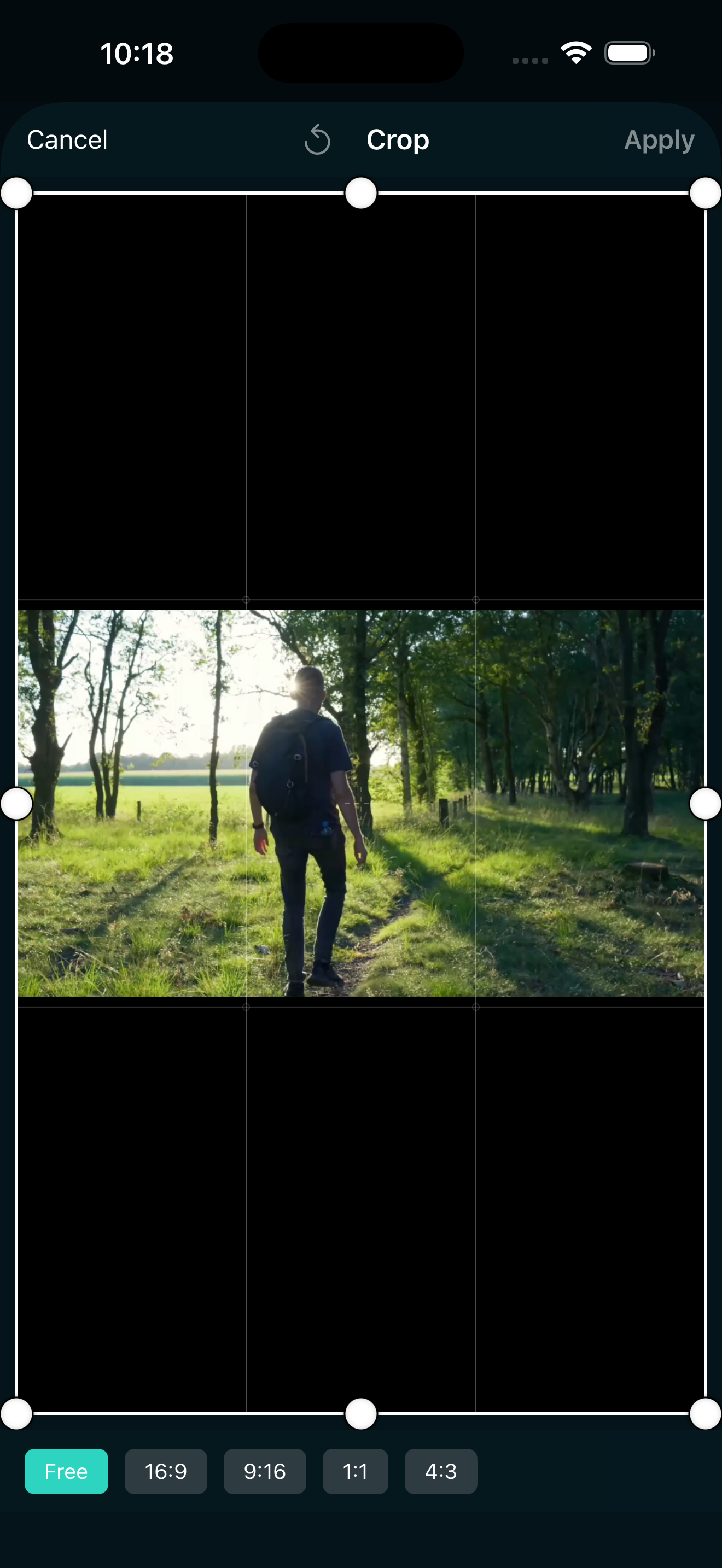
You shot a video and the framing is not quite right. Maybe there is too much headroom, an unwanted object at the edge, or you need to fit the clip into a square or vertical frame for social media. Cropping a video on iPhone is one of the simplest edits you can make, and it fixes all of these problems in a few taps.
Here is a step-by-step guide to cropping a video on iPhone, covering the crop tool, preset ratios, how cropping differs from changing aspect ratio, and a few tips for getting cleaner results.
What cropping a video actually does
Cropping removes part of the visible frame. You drag handles to define the area you want to keep, and everything outside that area is cut away. The result is a tighter, more focused video without the distracting edges.
This is different from changing the aspect ratio. Aspect ratio changes the canvas shape (the container your video sits in), while cropping changes what part of the video is visible inside that container. You can use them together: crop first to tighten the frame, then set the aspect ratio to match your target platform. We will cover both below.
How to crop a video on iPhone, step by step
These steps use the Crop tool in EditorPro, which is free and works on any clip in your timeline.
- Import your video. Open EditorPro, tap the + button in the top bar, and select the video from your photo library. You can import up to 10 items at once.
- Select the clip. Tap the clip on the timeline so it is highlighted. The bottom tool strip shows all editing options.
- Tap Crop. The crop editor opens with a draggable frame over your video preview. You will see crop handles on the edges and corners.
- Drag the handles. Pull the edges inward to define the area you want to keep. The preview updates in real time so you can see exactly what remains.
- Choose a preset (optional). If you need a specific shape, tap one of the crop presets: Free, 16:9, 9:16, 1:1, or 4:3. Free lets you crop to any shape. The others snap to common ratios.
- Confirm. Once the frame looks right, confirm the crop. The clipped video replaces the original on your timeline.
That is the whole process. The crop is non-destructive, meaning you can undo it at any time with the undo arrow in the top bar. Even if you close and reopen the project, your edit history is preserved.
Crop presets: which one should you use?
The five crop presets cover the most common framing needs:
- Free: Drag the handles to any shape. Use this when you want to cut out a specific object or person and the exact ratio does not matter.
- 16:9: Standard widescreen for YouTube and landscape video. Use this if your source video is taller than 16:9 and you want a clean widescreen crop.
- 9:16: Vertical format for Reels, TikTok, and YouTube Shorts. Crop a landscape video down to vertical to fill a phone screen.
- 1:1: Square. Useful for Instagram feed posts where square video fills the grid nicely.
- 4:3: A classic TV ratio. Rarely needed for social media but useful for older footage or specific archival formats.
If none of the presets fit, Free mode gives you full control. You can crop to any rectangle shape and the video adapts.
Cropping vs. changing aspect ratio
People often confuse cropping with changing the aspect ratio, and the two are related but not the same. Here is the difference:
Crop changes what part of the video is visible. You are cutting away edges. The video resolution and shape change to match your crop.
Aspect ratio changes the canvas size and shape, then uses a fill mode to handle the gap. For example, if you switch a landscape video to 9:16, the canvas becomes vertical and you can choose how to fill the empty space: Fit (black bars), Blur Background, Zoom to Fill, Mirror Edges, Solid Color, or Gradient.
In practice, the best workflow is often: crop first to tighten the frame, then use the Aspect tool to set the canvas shape and fill mode for your target platform. This gives you control over both what is visible and how it is presented.
For a deeper look at the aspect ratio tool, see our guide on how to make a video vertical for Reels and TikTok.
Tips for cleaner crops
- Crop early in the edit. Crop before adding text or effects so those elements are positioned relative to the final frame, not the original.
- Leave headroom. If your subject is a person, keep a small amount of space above their head. Tight crops that cut off foreheads look accidental.
- Check the edges. After cropping, scrub through the whole clip. Subjects that move can end up partially out of frame if you crop too aggressively.
- Use the same crop across clips. If you are editing multiple clips for the same post, crop them all to the same ratio so the final video looks consistent.
- Combine with zoom for a push-in effect. Crop a clip to tighten the frame, then duplicate it and crop again at a different point to simulate a camera push. A cross dissolve between the two makes it smooth.
Can you crop a video on iPhone for free?
Yes. The Crop tool in EditorPro is completely free, along with all the crop presets. You can crop, trim, add filters, transitions, effects, text, and music without paying anything. Free exports are unlimited but include a small watermark in the bottom-right corner.
If you post frequently and want clean, watermark-free exports, EditorPro Pro removes the watermark for $2.99 per month or $14.99 per year (with a 7-day free trial on the annual plan). Pro also unlocks 4K export quality. Everything else, including cropping, works the same on the free plan.
Wrapping up
Cropping a video on iPhone takes seconds once you know where the tool is. Open EditorPro, tap your clip, tap Crop, drag the handles, and confirm. Five presets cover the most common shapes, and Free mode handles anything else. Pair cropping with the aspect ratio tool when you need to match a specific platform, and you will have clean, properly framed videos ready to share.
Crop and edit videos free on iPhone
EditorPro gives you crop presets, aspect ratio tools, filters, transitions, and more, all free. Download and start editing in minutes.
Download on the App Store