
How to Export Video Without Watermark on iPhone
You finished editing your video and it looks great, but when you export there is a watermark sitting in the bottom-right corner. Most free iPhone video editors add one. It is frustrating, especially when you spent time on the details and want a clean result for Reels, TikTok, or a personal project.
The good news: you have options. This guide covers what watermarks are, why apps use them, and the three ways to export video without watermark on iPhone, including one that costs nothing.
Why free video editors add watermarks
A watermark is a small overlay (usually a logo or app name) burned into the exported video. Free editors add it to encourage you to upgrade to a paid plan. The editing tools are genuinely free, but the watermark is the tradeoff for using them without paying.
This is not a bug or an accident. It is a standard freemium model: the app gives you real editing power at no cost, and the watermark is the visible reminder that a paid tier exists. The question is how to get a clean export within that system.
Two ways to get a watermark-free export
1. Upgrade to Pro (unlimited clean exports)
Pro removes the watermark on every export, with no per-export limit and nothing to watch or wait for. It is the only way to get a clean export in EditorPro.
How to do it in EditorPro:
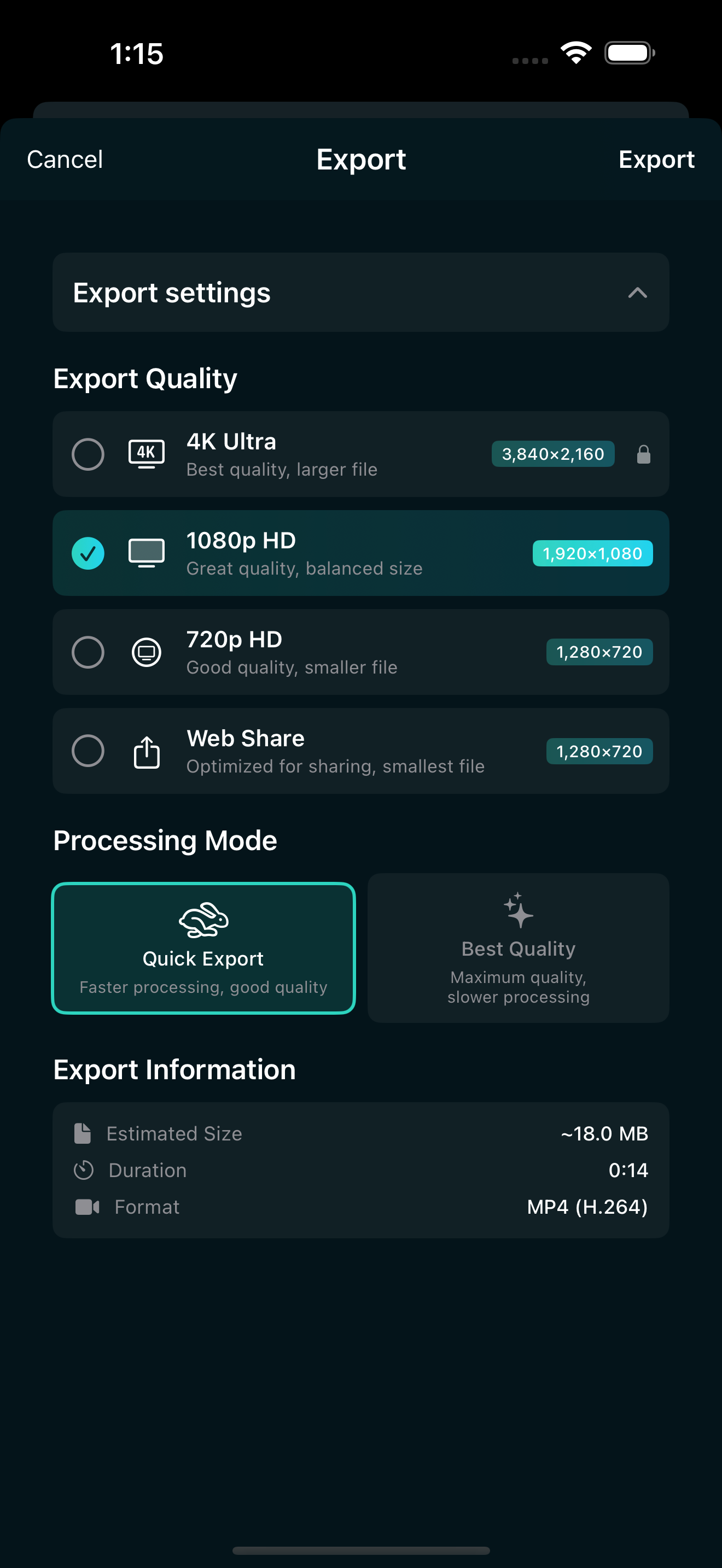
- Tap the share icon in the top toolbar to open the export sheet.
- Pick your quality (720p, 1080p, or 4K if you have Pro).
- If you are on the free tier, the sheet tells you "Your export will include a watermark".
- Choose Remove watermark with EditorPro Pro to upgrade, and the export proceeds clean.
EditorPro Pro pricing:
- $2.99/month for month-to-month.
- $14.99/year with a 7-day free trial (annual plan only).
Pro also unlocks 4K Ultra export (3840x2160 at 35 Mbps), which is not available on the free tier. Free users can export at 720p or 1080p, which is plenty for most social posts, but 4K matters if you are delivering to a higher-resolution platform or want extra quality for archival.
Other Pro benefits include unlimited Auto Reel (free tier gets one per week) and unlimited AI chat assistant messages (free tier gets roughly five total). If you use the app more than a few times a month, the annual plan pays for itself quickly.
2. Crop or cover the watermark (not recommended)
Some people try to crop out the watermark or layer a sticker over it. This almost always looks worse than the watermark itself. Cropping changes your aspect ratio and can cut off important parts of the frame. Covering it with another element adds clutter and rarely lines up perfectly across every frame.
Skip the workaround. Upgrade to Pro instead, or accept the watermark on free exports.
Choosing the right export quality
Once you have a clean export path, pick the quality that fits where the video is going. Here is a quick reference based on EditorPro's export tiers:
- Web Share (1280x720, 3 Mbps): Smallest file, fastest upload. Fine for quick stories or drafts you want to share privately.
- 720p HD (1280x720, 5 Mbps): A step up in bitrate, still small. Good for Snapchat or Pinterest where 720p is standard.
- 1080p HD (1920x1080, 10 Mbps): The sweet spot for Instagram Reels, TikTok, and YouTube Shorts. Both free and Pro users can access this.
- 4K Ultra (3840x2160, 35 Mbps): Pro only. Use it for YouTube, portfolio pieces, or when you want maximum quality and storage is not a concern.
For most social content, 1080p is the right choice. It looks sharp on phone screens, uploads quickly, and avoids the large file sizes that make 4K impractical for casual posting.
Quick tips for cleaner exports
- Use Best Quality mode when it matters. EditorPro offers Quick Export (faster) and Best Quality (slower but better). For anything going public, switch to Best Quality.
- Check your aspect ratio before exporting. If you are posting to Reels or TikTok, set the canvas to 9:16 so the video fills the screen. Read our guide on how to make a video vertical for Reels and TikTok for the full steps.
- Export in MP4. EditorPro exports H.264 MP4, which is the format every major platform expects. You do not need to convert anything.
- Save to Photos first. The exported video lands in your Photos library, so you can share it from there to any app.
Is a free video editor without watermark realistic?
Yes, with caveats. A truly free editor with no watermark, no ads, and no limits is rare on iPhone. Most apps that advertise "no watermark" either show ads, limit features, or require a subscription after a trial. The freemium model (free editing, watermark on export) is the most common because it gives you real tools without forcing payment upfront.
EditorPro follows this model but keeps it honest: the editing tools, filters, transitions, effects, text overlays, music, and even 1080p export are all free, with no ads anywhere in the app. The watermark is the only visible limitation on free exports, and you remove it by going Pro.
If you only edit occasionally, the free tier with its watermark is genuinely usable. If you are posting every week or working on multiple projects, the annual plan at $14.99 works out to about $1.25 per month, which is hard to beat for a full-featured editor with 4K output.
Export clean videos from your iPhone
EditorPro gives you a full editing toolkit, and Pro gets you watermark-free 4K export. Free to download, made for iPhone.
Download on the App Store