
Best Export Settings for Instagram and TikTok on iPhone
You spent the afternoon trimming clips, picking filters, and syncing cuts to the beat. The last step is export, and it is where a lot of good videos quietly fall apart. Pick the wrong quality tier and Instagram or TikTok recompresses an already soft file. Pick the wrong shape and your vertical edit ends up in a letterbox. The good news: the best export settings for Instagram and TikTok on iPhone come down to three choices, resolution, bitrate, and format, and they are easy to get right.
What Instagram and TikTok do to your upload
Here is the part most people miss: neither platform plays your file as-is. Both re-encode every video on the way in. That second compression pass is where crisp footage turns mushy, especially in fast motion, dark scenes, and small text.
The fix is to hand the platform a clean, well-fed file so the re-encode has little left to damage. That means three things:
- Resolution that matches the platform's display size, not far above or below it
- Bitrate high enough to keep detail through the re-encode
- Format the platform expects, which for both apps is MP4 (H.264)
Bitrate is the one people skip, so here is the short version: bitrate is how much data each second of video gets. More data per second means more surviving detail when Instagram or TikTok does its own compression pass. A low-bitrate export looks fine on your phone and falls apart on the feed.
EditorPro's export options, explained
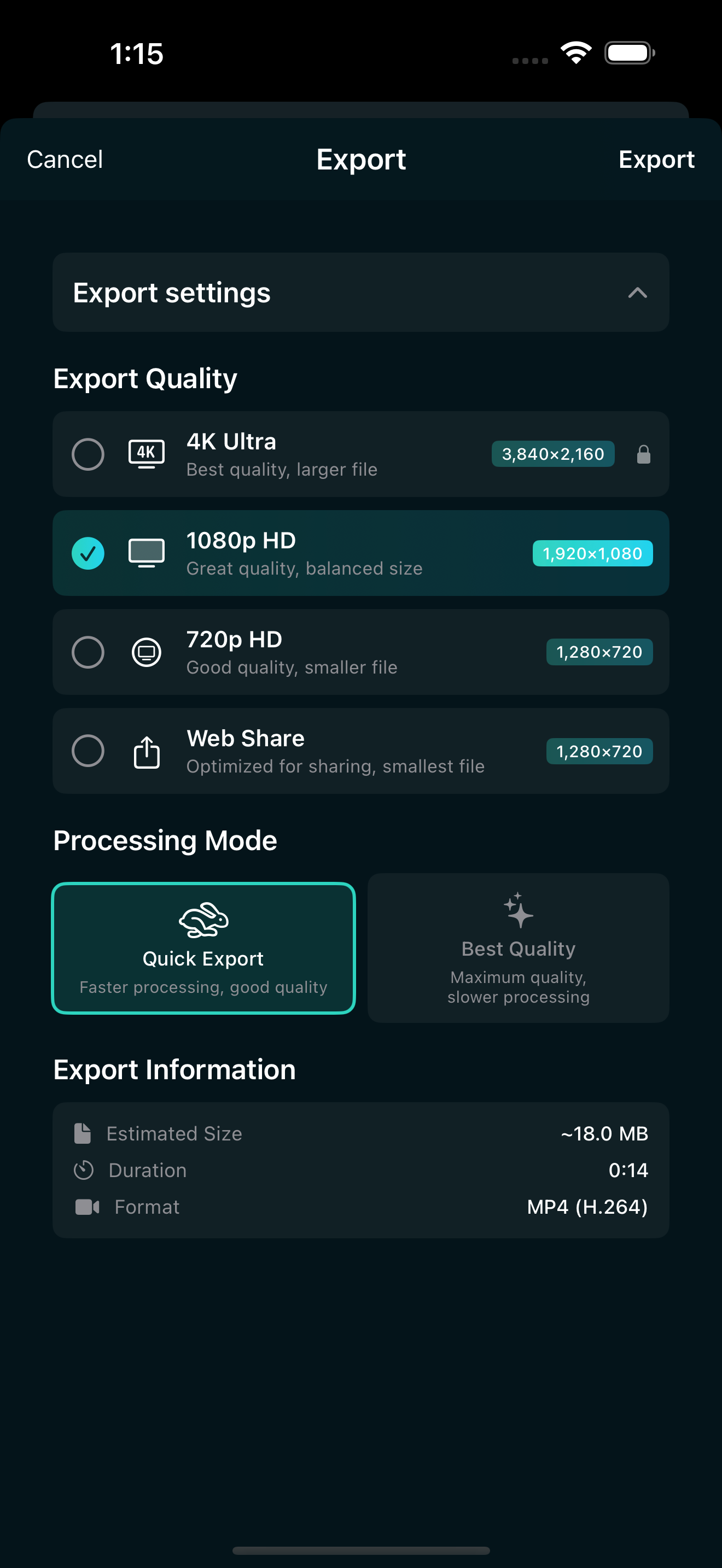
In EditorPro you export by tapping the share icon in the top toolbar. The export sheet shows a progress ring while it renders, then saves the finished MP4 straight to Photos. There are four quality tiers:
- Web Share: 1280x720 at 3 Mbps, for quick previews and messaging
- 720p HD: 1280x720 at 5 Mbps
- 1080p HD: 1920x1080 at 10 Mbps
- 4K Ultra: 3840x2160 at 35 Mbps (Pro)
Below the tiers you pick a processing mode: Quick Export, the faster option, or Best Quality, which prioritizes the final file. Every tier exports as MP4 (H.264), which is exactly the format Instagram and TikTok ingest best.
The best settings for Reels and TikToks
For a video heading to Reels or TikTok, use these settings:
- Aspect: Portrait (9:16), set with the Aspect tool before you export, so the video fills the whole screen. If your footage is horizontal, a fill mode like Blur Background avoids black bars. We cover this in detail in how to make a video vertical for Reels and TikTok.
- Quality tier: 1080p HD. Both platforms show vertical video at around 1080p, so this tier matches the display without wasting file size, and its 10 Mbps bit rate is comfortably above what the re-encode needs.
- Processing mode: Best Quality for anything you plan to post.
Why not 4K Ultra? A 4K upload mostly gets scaled back down to the platform's display size anyway, while the file takes longer to render and longer to upload. Where 4K earns its keep is future-proofing: if the same edit will also go somewhere that keeps the resolution, a 4K master gives you headroom. That tier, along with watermark-free export, is part of Pro.
Save Web Share and 720p HD for what they are good at: quick drafts to check pacing, or a rough cut you want to send to a friend. They render fast and produce small files, which is the point.
Step by step: exporting your video
- Open the Aspect tool and set the canvas to Portrait (9:16).
- Tap the share icon in the top toolbar.
- Choose 1080p HD.
- Choose Best Quality.
- Wait for the progress ring to finish. The MP4 saves straight to Photos.
- Post from inside the Instagram or TikTok app, picking the video from Photos.
That last step matters more than it sounds. If you first send the file through a messaging app, it often gets recompressed before it ever reaches the platform. Going from Photos straight into the app keeps your export settings intact.
Free vs Pro at export time
On the free plan, exports are unlimited and cover 720p and 1080p, with a small "EditorPro / AI Video Editor" watermark in the bottom-right corner. If you post occasionally, that may be all you need.
Pro removes the watermark and unlocks 4K Ultra. It is $2.99 a month or $14.99 a year, and the annual plan starts with a 7-day free trial. For people posting regularly, a clean corner is the difference between a video that looks homemade and one that looks produced. We break down the options in how to export video without watermark on iPhone.
Common export mistakes
- Posting a Web Share export. 3 Mbps is fine for a quick look, but as a final upload it hands the platform a soft file to compress further.
- Exporting horizontal video for vertical feeds. The platform will not recrop for you. Set Portrait (9:16) in the app first.
- Routing the file through a messaging app. Extra hops mean extra compression. Upload from Photos.
- Re-editing an exported video. Every export adds a generation of compression. If you want changes, reopen the project, edit the original, and export once.
Export once, export right
Settings you do not have to think about are the best kind. In EditorPro the whole decision is one screen: 1080p HD, Best Quality, Portrait (9:16), and your Reel or TikTok leaves the app looking the way you edited it. The finished MP4 saves straight to your Photos, ready to post.
Export Reels that stay sharp
EditorPro exports clean 1080p MP4 straight to Photos, with quality tiers for every platform and a Best Quality mode for finals. Free to download, made for iPhone.
Download on the App Store