
How to Add Sound Effects to a Video on iPhone
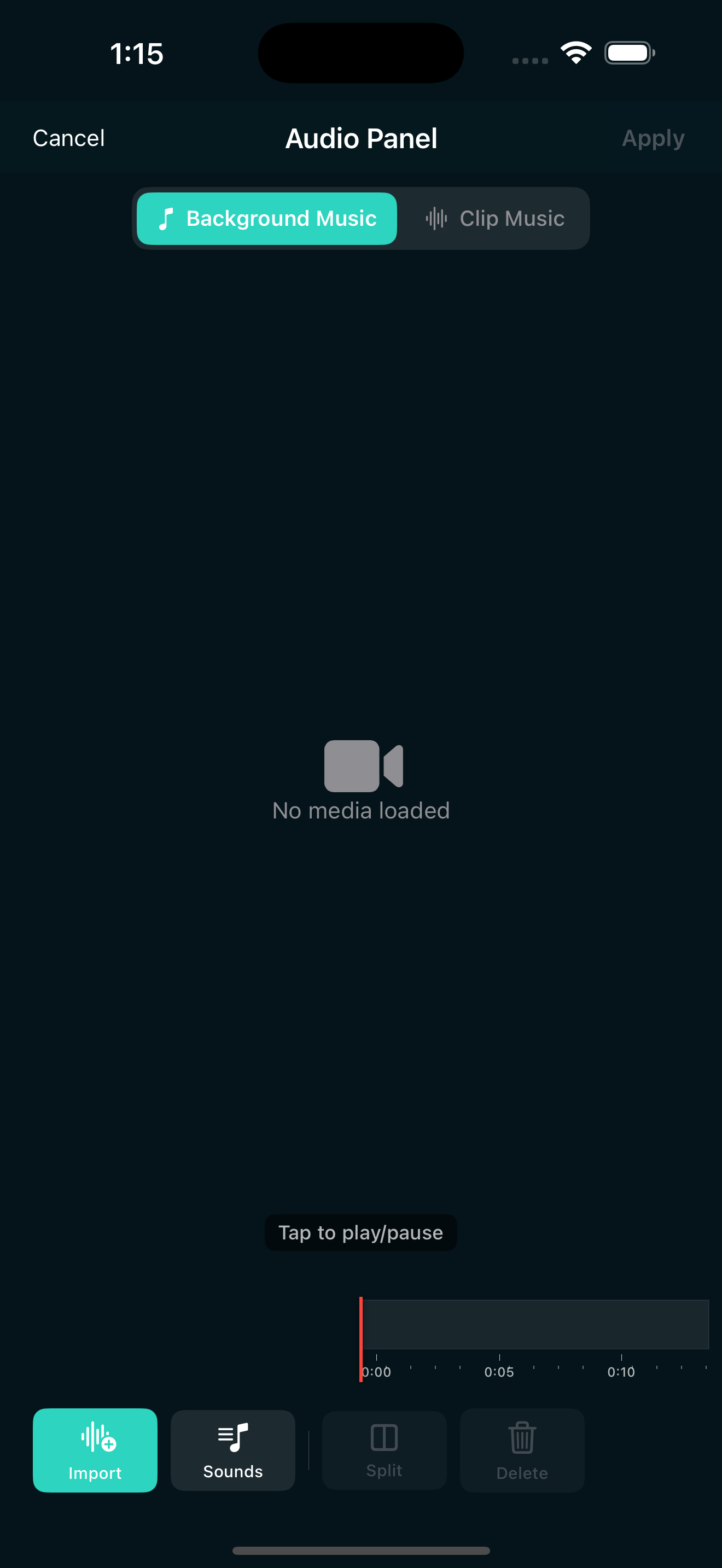
A good sound effect does a lot of heavy lifting. A whoosh makes a transition feel faster. A ding draws attention to a pop-up. A riser builds tension before a reveal. If you edit video on your iPhone, you do not need to hunt for sound packs online or mess with a separate audio app. EditorPro has a built-in library of 53 sound effects and background tracks, and you can drop any of them onto your timeline in a few taps.
This guide walks through how to add sound effects to a video on iPhone using EditorPro, from finding the right SFX to layering them with your clips and mixing the volume so everything sounds clean.
What is in the built-in audio library
When you open the Music panel in EditorPro, you get two modes: Clip Audio and Background Music. Clip Audio is where the sound effects live. The library includes 44 short sound effects and 9 background music tracks, each shown with a waveform so you can see the shape of the sound before you add it.
The sound effects are organized into categories that cover the most common short-form video needs:
- Whoosh: Descent Whoosh, Swoosh Heartbeat, Fast Sweep, Whoosh Cinematic. Perfect for transitions and whip pans.
- Impacts: Large Underwater Explosion, Riser Hit, Mega Horn Siren. Use these for dramatic reveals or beat drops.
- Dings: Ding 1 and Ding 2. Great for notifications, pop-ups, and surprise moments.
- Transitions: Cinematic Riser, Epic Orchestra Transition, Intro Transition, Riser Wildfire. These build anticipation before a cut.
- Notifications: Classic Alarm, Vintage Telephone, New Notification 1 through 5, and Notification. Handy for app demos and UI walkthroughs.
- Clicks: Thud. A subtle hit for button presses or scene changes.
- Misc SFX: Camera Flash, Glitch Effect, Crowd Laugh, Rain and Thunder, Rimshot, "Wow", Winter Wind, and more. These cover everything from comedy beats to atmosphere.
There are also 9 background music tracks in genres from upbeat pop to deep electric night, so you can add a full soundtrack underneath your SFX. Read more about that in our guide on how to add music to a video on iPhone.
Step 1: Open your project and find the Music panel
Open EditorPro and load the project you want to edit. Tap Music in the bottom tool strip. The panel opens in Clip Audio mode by default, which is where you add sound effects to individual clips.
If you want to add background music instead (or in addition), switch to the Background Music tab. You can use both: a soundtrack for the whole video plus sound effects on specific clips.
Step 2: Add a sound effect to a clip
In Clip Audio mode, scroll through the sound effects library until you find one that fits. Tap it to preview. When you are happy with the choice, add it to the clip at the playhead. The sound effect attaches to that clip, so it stays in sync even if you trim or reorder things later.
Here are a few pairing ideas that work well for short-form video:
- Whoosh on a transition: Add a Descent Whoosh right where one clip ends and the next begins. It makes the cut feel fast and intentional.
- Ding on a text reveal: Add Ding 1 at the exact moment a caption pops in. The sound draws the eye to the text instantly.
- Cinematic Riser before a big moment: Place it a second or two before a reveal, a destination shot, or a tonal shift.
- Camera Flash for photo transitions: If you are cutting between still photos, the shutter sound makes each cut feel like a captured moment.
- Glitch Effect on a VHS or glitch transition: Pair the SFX with a glitch transition for a double-hit that sells the effect. See our guide on how to make a VHS video on iPhone for more on retro looks.
Step 3: Adjust volume and mute clips
Once your sound effect is in place, you may need to balance it with the clip's original audio and the background music. EditorPro gives you per-clip volume control and a mute toggle, so you can fine-tune the mix without leaving the timeline.
Tap a clip and use the Volume control to raise or lower its audio level. If a clip has unwanted background noise (wind, conversation, camera handling), tap Mute to silence it entirely. This lets your sound effect or background track take over cleanly.
A simple mixing approach that works for most Reels and TikToks:
- Mute or lower the volume on any clip where the original audio is not needed.
- Set your background music to a comfortable level, around 30 to 50 percent so it sits underneath everything.
- Keep sound effects at full volume so they punch through the mix.
Step 4: Add background music with fade in and fade out
If you want a soundtrack under your whole video, switch to the Background Music tab. Pick one of the 9 built-in tracks, and it fills any gap in your timeline. You can adjust the position and offset to start the music at the right moment, set the volume independently of clip audio, and enable fade in and fade out so the music starts and ends smoothly.
Background music and sound effects are not mutually exclusive. A common setup for a Reel is a background track at low volume, a few sound effects at full volume on key transitions, and the clip audio muted or lowered. That layering is what makes a video sound produced rather than flat.
Tips for better sound design on iPhone
- Less is more. One or two well-placed sound effects per video are more effective than a SFX on every cut. Save them for the moments that matter.
- Match the SFX to the visual. A Whoosh on a whip pan transition feels natural. A Mega Horn Siren on a quiet landscape shot feels random. Let the visual lead.
- Use silence as a tool. Dropping the background music for half a second before a big reveal makes the reveal hit harder. You can split the music track and delete the gap, or just mute that section.
- Preview with headphones. iPhone speakers are good, but small SFX details get lost. Earbuds or headphones will tell you whether the mix is clean.
- Watch your levels. If everything is at full volume, nothing stands out. Background music should sit below your sound effects, and sound effects should sit below any voice audio.
Export and share
When your mix sounds right, tap the share icon in the top toolbar to export. Free exports are unlimited and include a small watermark, with quality up to 1080p. If you want 4K output or a watermark-free finish, Pro removes the watermark and unlocks 4K Ultra at $2.99 per month or $14.99 per year (with a 7-day free trial on the annual plan).
The exported MP4 saves to your Photos library, ready to upload to Reels, TikTok, YouTube Shorts, or wherever you post. All editing and mixing stays on your device; nothing is uploaded to a server.
Add sound effects to your next video
EditorPro includes 53 built-in sound effects and music tracks, all free to use. Download it for iPhone and give your videos the sound they deserve.
Download on the App Store