How to Edit a Video with AI on iPhone
You have a clip that needs work, but you do not want to hunt through menus or memorize a timeline. What if you could just describe the edit you want and have it done for you? That is the idea behind the AI chat assistant in EditorPro. You type what you need in plain English, and it applies the change on your timeline right away.
This guide walks through how to edit a video with AI on your iPhone, what the assistant can and cannot do, and when it makes sense to use AI versus doing it yourself.
What the AI chat assistant does
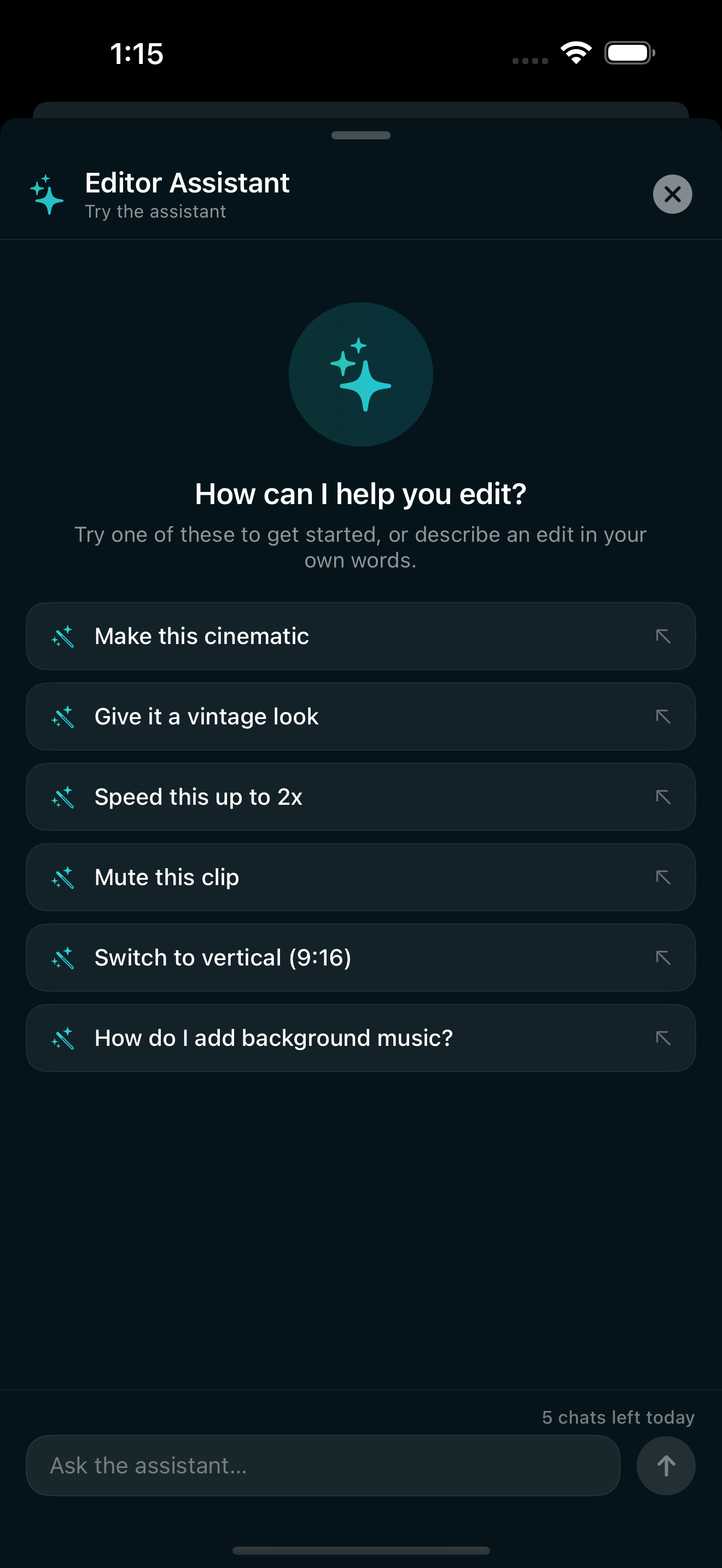
Inside EditorPro, the AI chat assistant lives behind the sparkles icon in the top toolbar. Tap it, and a chat panel opens over your timeline. You type a request, and the assistant carries it out on your project. It works with the same tools you already have: filters, transitions, speed changes, audio adjustments, aspect ratio, clip management, and more.
Here are some examples of what you can ask:
- "Make this cinematic" applies a cinematic color grade to your clips.
- "Give it a vintage look" switches to a vintage filter.
- "Speed this up to 2x" changes the playback speed on the selected clip.
- "Switch to vertical" or "Change aspect ratio to 9:16" sets your canvas to portrait for Reels or TikTok.
- "Mute this clip" silences the audio on the clip at the playhead.
- "How do I add background music?" opens the Music panel and walks you through it.
The assistant can also split clips, remove clips, duplicate them, reorder them, and open the right panel for whatever you are trying to do. Think of it as a co-editor that knows every tool in the app and can act on your behalf.
Getting started with AI editing
Editing a video with AI on iPhone is straightforward once you know the flow. Here is how to set up your project and start using the assistant.
- Import your clips. Open EditorPro and start a new project. Tap the plus button in the top toolbar to add photos and videos from your camera roll. You can import up to 10 items at a time.
- Tap the sparkles icon. This opens the AI chat panel. You will see a text field where you can type your request.
- Describe what you want. Keep it direct. "Add a dissolve transition between all clips" or "Crop this to square" or "Make it look like a VHS tape" all work. The assistant understands common editing language and in-app feature names.
- Review the result. The assistant applies the change and shows you what happened. If it is not what you wanted, use the undo button in the top toolbar or ask the assistant to try something different.
- Keep going or finish manually. You can chain multiple AI requests, or switch to the manual tools at any point. The AI edits and your manual edits live on the same timeline with full undo history.
What the assistant cannot do (yet)
The AI chat assistant is powerful for applying edits, but it has limits. It works within EditorPro's existing feature set, so it cannot create features that are not in the app. A few things to keep in mind:
- It cannot generate new video content or AI imagery beyond what Auto Reel already handles.
- It cannot export your video for you. You still tap the share icon and pick your quality tier.
- It does not replace careful creative decisions. It applies what you ask for, so the quality of the result depends on how clearly you describe what you want.
If you ask something the assistant cannot do, it will let you know and suggest the closest alternative or open the right panel so you can do it yourself.
When to use AI versus manual editing
AI editing shines when you know what you want but not where the button is. If you have ever thought "I wish I could just make this look like a movie," typing that sentence is faster than scrolling through 138 filters to find the right one.
On the other hand, manual editing gives you precise control. If you need to trim a clip to an exact frame, adjust the volume on a single segment, or fine-tune a filter's intensity slider, the manual tools are your best bet. The two approaches work together: use AI for broad strokes, then refine by hand.
A practical workflow looks like this: import your clips, ask the assistant to set the aspect ratio and apply a look, then manually trim, split, and adjust timing until it feels right.
AI editing for social platforms
One of the best use cases for the AI assistant is formatting your video for a specific platform. If you are posting to Instagram Reels, tell the assistant "switch to 9:16 for Reels" and it changes the aspect ratio instantly. If you want a TikTok vibe, try "apply TikTok Vibrant" to get the right color grade.
Combining AI edits with EditorPro's cinematic filters and transitions gives you a quick path from raw footage to something polished enough to post.
Free versus Pro access
The AI chat assistant is available to everyone. Free users get roughly five messages total, which is enough to try it out on a project or two. If you edit videos regularly and want unlimited AI assistance, Pro removes that cap entirely.
Pro also unlocks 4K export, removes the watermark, and gives you unlimited Auto Reel generation. It is $2.99 per month or $14.99 per year with a 7-day free trial on the annual plan.
For most casual editors, the free tier is enough to get started. The five messages let you experience the AI workflow end to end, and every other editing tool in the app, all 138 filters, all transitions and effects, is free without limits.
Tips for better results with the AI assistant
- Be specific. "Add a fade to black transition between the first two clips" works better than "make it look better."
- Use in-app names. The assistant understands feature names from EditorPro, so saying "apply Noir" or "use Reels Magic" maps directly to the right filter.
- One request at a time. If you want multiple changes, ask for them sequentially rather than in one long sentence. This way you can review each step.
- Ask "how do I" questions. If you are not sure what is possible, ask. The assistant can guide you to the right panel or explain a feature.
Editing video with AI on iPhone is no longer a concept. It is a working feature inside EditorPro that understands your words and acts on your timeline. Whether you are a beginner who wants guidance or an experienced editor looking for shortcuts, the assistant gives you a faster path from raw footage to a finished video.
Edit your next video with AI
EditorPro's AI chat assistant takes your words and turns them into edits on the timeline. Free to try on iPhone.
Download on the App Store