
How to Make a Birthday Video on iPhone
You just finished celebrating a birthday and your phone is full of clips: candles being blown out, friends laughing, a toast, maybe a slow-motion dance. A birthday video on iPhone is the best way to turn those moments into something you can share with family or post as a reel. The good news is you do not need a desktop editor or any experience. You can do the whole thing on your phone in a few minutes.
Here is a step-by-step guide to making a birthday video that looks polished, sounds great, and is ready to share.
Step 1: Pick your best clips
Before you open any editor, skim through your camera roll and pick the moments that tell the story. You do not need every clip you recorded. Five to fifteen short clips is plenty for a 30 to 60 second birthday video. Look for variety: the cake, the reaction, a group shot, a candid laugh, and maybe a slow-motion moment for drama.
If some clips are too long, you can trim them later. For now, just gather the raw material.
Step 2: Choose your approach
There are two ways to build your birthday video, and both work great on iPhone:
The fast way: Auto Reel
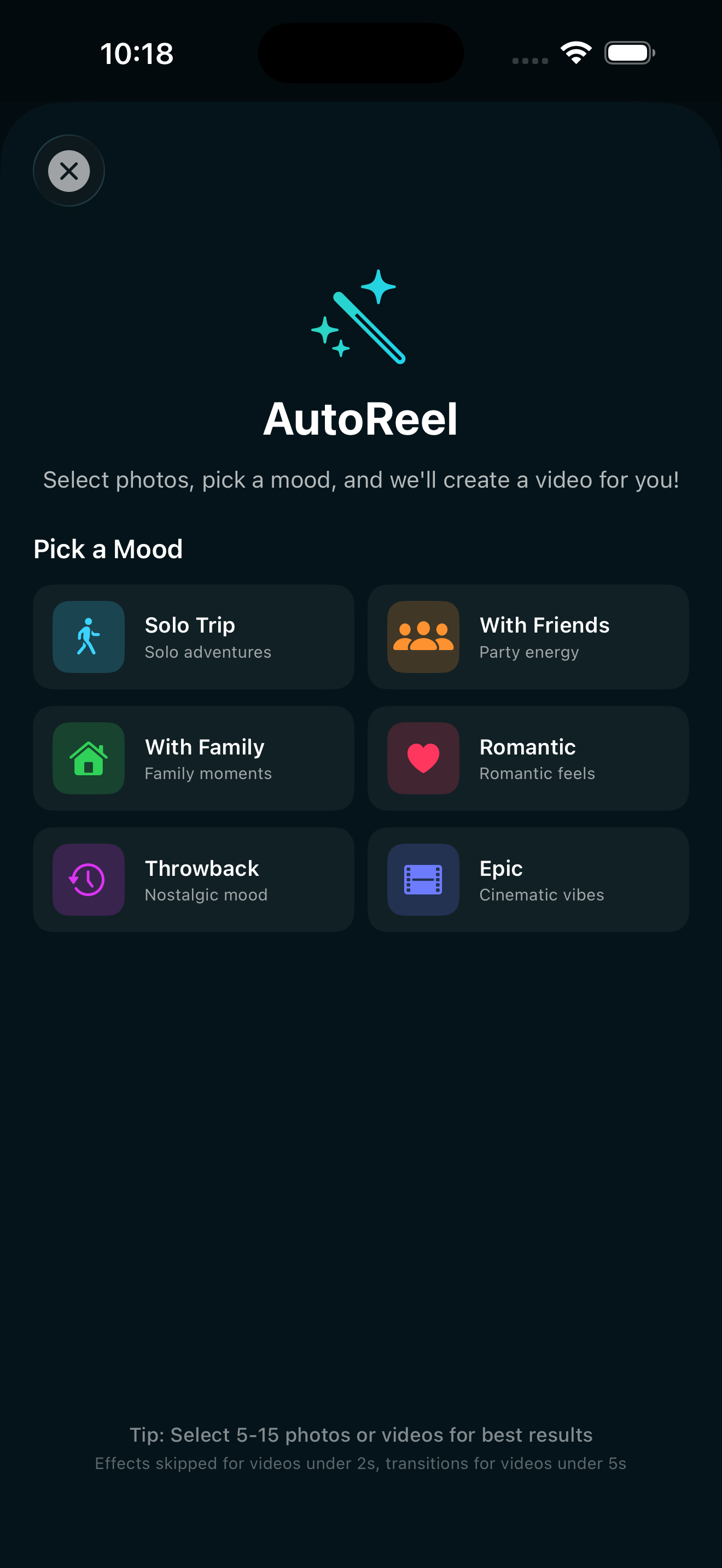
If you want a finished video in under a minute, use Auto Reel. Open EditorPro and tap the Auto Reel card on the start screen. Pick a mood that fits the vibe, like "With Friends" or "With Family." Then select your birthday photos and clips. Auto Reel does the rest: it adds motion to photos, picks transitions, applies a mood-matched filter, and layers in background music. You get a finished reel you can preview, regenerate, or drop onto the timeline for further editing.
Auto Reel is free once per week, which is usually enough for a birthday. If you make videos more often, EditorPro Pro gives you unlimited Auto Reel generations.
The manual way: build it yourself
If you want full control over every cut, start with a blank project instead. Tap the + button to import your clips, and they appear on the timeline in order. From there you can trim, split, reorder, and arrange everything yourself.
Step 3: Trim and arrange your clips
Once your clips are on the timeline, trim each one to its best moment. Tap a clip and drag the handles to set the start and end points. If a clip has a great moment buried in the middle, use Split to cut it at the playhead and keep only the part you want.
Aim for clips that are 2 to 5 seconds long. Short clips keep the energy up and make the video feel like a highlight reel rather than a home movie. You can also long-press and drag clips to reorder them if the story flows better in a different sequence.
For a deeper dive on cutting clips, see our guide on how to trim and split a video on iPhone.
Step 4: Add music
Music is what turns a collection of clips into a birthday video. Tap Music in the bottom tool strip to open the audio panel. You can keep the audio from your original clips, mute it, or add a soundtrack.
EditorPro includes a built-in library with background music tracks and sound effects. For a birthday video, something upbeat works well. Try "Upbeat Vibes 1" or "Reel Upbeat" from the background music section. You can also add sound effects like a ding for the candle blowout moment or a cinematic riser before the big reveal.
Adjust the music volume so it does not drown out any important moment from the original audio, like someone singing happy birthday.
Step 5: Apply a filter
A filter gives your whole video a consistent look, which makes it feel intentional and edited rather than random. Tap Filters in the bottom tool strip and browse by category.
For a birthday video, a few filters work especially well:
- Warm or Vibrant from the Color Pop category to make colors pop, especially cake and decorations.
- Festival from Color Pop for a party feel.
- Romantic or Cozy from the Mood category for an intimate family gathering.
- Golden from the Trending category for a warm, golden-hour glow.
Each filter has an intensity slider so you can dial it down if it looks too strong. You can also apply a filter to one clip or to all clips at once using the scope toggle.
Step 6: Add a text overlay
A short text overlay makes it clear what the video is about. Tap Text in the bottom tool strip and type something like "Happy Birthday" or the person's name and age. Pick from 13 built-in styles like Neon, Glitch, or Typewriter. Drag to position it, pinch to resize, and set the start time and duration so it appears when you want it.
Keep text short. A name and a date, or a simple "Happy Birthday, Sarah!" at the start of the video is enough. You can add a second text overlay near the end with a closing message if you want.
Step 7: Choose the right aspect ratio
If you are posting to Instagram Reels or TikTok, switch to a 9:16 portrait aspect ratio so your video fills the full screen. Tap Aspect in the bottom tool strip and select Portrait (9:16). If your clips were shot in landscape, use a fill mode like Blur Background or Zoom to Fill so there are no black bars.
If you are sending the video in a group chat or by message, 16:9 landscape or 1:1 square works fine too. Pick the format that matches where the video will be seen.
Step 8: Export and share
When your video looks right, tap the share icon in the top toolbar. Choose your export quality: 720p and 1080p are free, and 4K is available with Pro. If you are on the free plan, your export will include a small watermark in the corner. That is fine for a personal video. If you want a clean copy to share publicly, Pro removes the watermark.
The exported video saves directly to your Photos app, so you can share it from there to Messages, Instagram, TikTok, or anywhere else.
Tips for a better birthday video
- Start with the candle blowout. It is the moment everyone waits for, and it makes a strong opening frame.
- Use a slow-motion clip for one moment. If you recorded anything in slow motion, drop it in the middle of the video for a dramatic beat. You can also slow down a regular clip using the Speed tool (0.5x).
- Keep it under 60 seconds. A tight birthday reel gets watched all the way through. You can always make a second video for more moments.
- Add a transition between scenes. A cross dissolve or light leak transition between clips keeps things smooth. See our guide on how to add transitions to a video on iPhone for the full walkthrough.
- Let Auto Reel do the heavy lifting. If you are short on time, Auto Reel with the "With Family" or "With Friends" mood will produce a great birthday video in one tap. You can always tweak it after.
Make it your own
The best birthday videos feel personal. You do not need fancy equipment or hours of editing. Pick the clips that made you smile, add a song that fits the energy, and let the moments speak for themselves. A simple, well-paced video will always beat a long, over-edited one.
Make a birthday video in minutes
EditorPro turns your birthday clips into a polished, music-synced video right on your iPhone. Free to download, no experience needed.
Download on the App Store