
How to Make a Cooking Video on iPhone
Cooking videos are one of the most popular formats on Reels and TikTok. A well-edited recipe clip can pull millions of views, and you do not need a camera crew or a desktop editor to make one. Your iPhone is more than capable, and the editing can be done in minutes once you know the workflow.
This guide covers the full process: shooting your clips, trimming for pacing, picking the right filter, adding transitions and text, layering in music or sound effects, and exporting in the right format for social.
Step 1: Shoot your cooking clips
Good editing starts with good footage. Here is what to capture:
- Shoot vertical (9:16). If your destination is Reels or TikTok, hold your phone upright. Vertical video fills the screen and gets more engagement than letterboxed content.
- Capture 5 to 8 short clips. Include a shot of the ingredients, a shot of each major step (chopping, mixing, cooking, plating), and a final hero shot of the finished dish. Keep each clip between 3 and 10 seconds.
- Use natural light. A window with daylight gives food a fresh, appealing look. Avoid yellow indoor lights that make food look dull.
- Shoot from multiple angles. An overhead shot for the full process, a 45-degree angle for pouring and mixing, and a close-up for the finished dish. Variety keeps the video interesting.
- Lock focus and exposure. In the Camera app, tap and hold on your subject to lock focus. This stops the brightness from shifting when steam or hands move through the frame.
Step 2: Import and arrange on the timeline
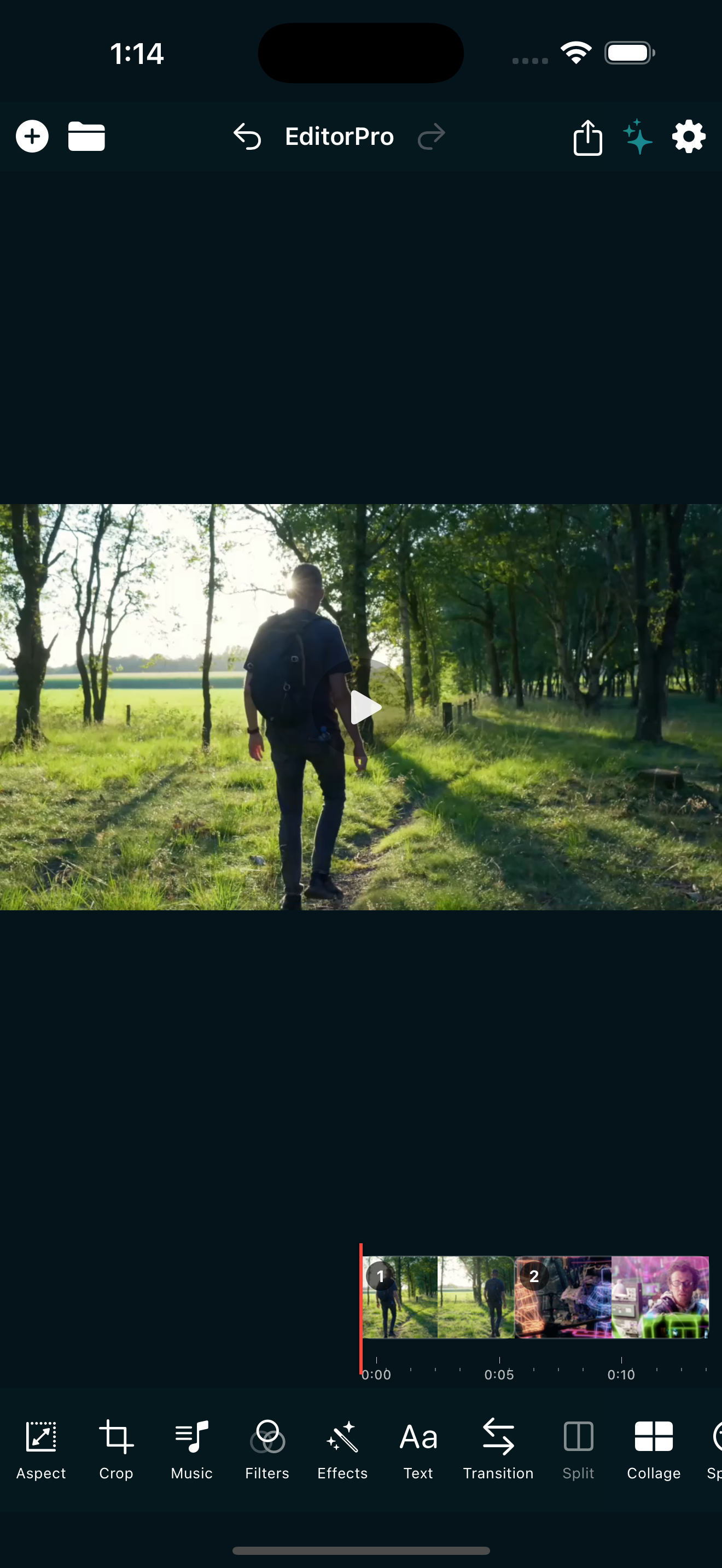
Open EditorPro and create a new project. Tap the + button in the top bar to import your clips. You can add up to 10 items at a time, and photos automatically become 5-second clips.
Once your clips are on the timeline, reorder them by long-pressing a clip and dragging it into position. A good cooking video follows a logical sequence: ingredients, prep, cooking, plating, hero shot. If you shot out of order, this is where you fix it.
Step 3: Trim and split for tight pacing
The biggest mistake in cooking videos is leaving too much dead time. A 15-second clip of someone slowly stirring is boring. Trim it to the 2 seconds where something visually interesting happens.
Tap a clip and drag the handles to trim the start and end. If a clip has a good moment in the middle, use Split to cut it at the playhead and keep only the part you need. Aim for a final video between 15 and 30 seconds for Reels and TikTok. Every second should show something happening.
If you have not used these tools before, the trim and split guide covers them in detail.
Step 4: Use speed to show process or drama
Speed changes are a powerful tool for cooking videos. Use them to fit more content into a short video without making it feel rushed.
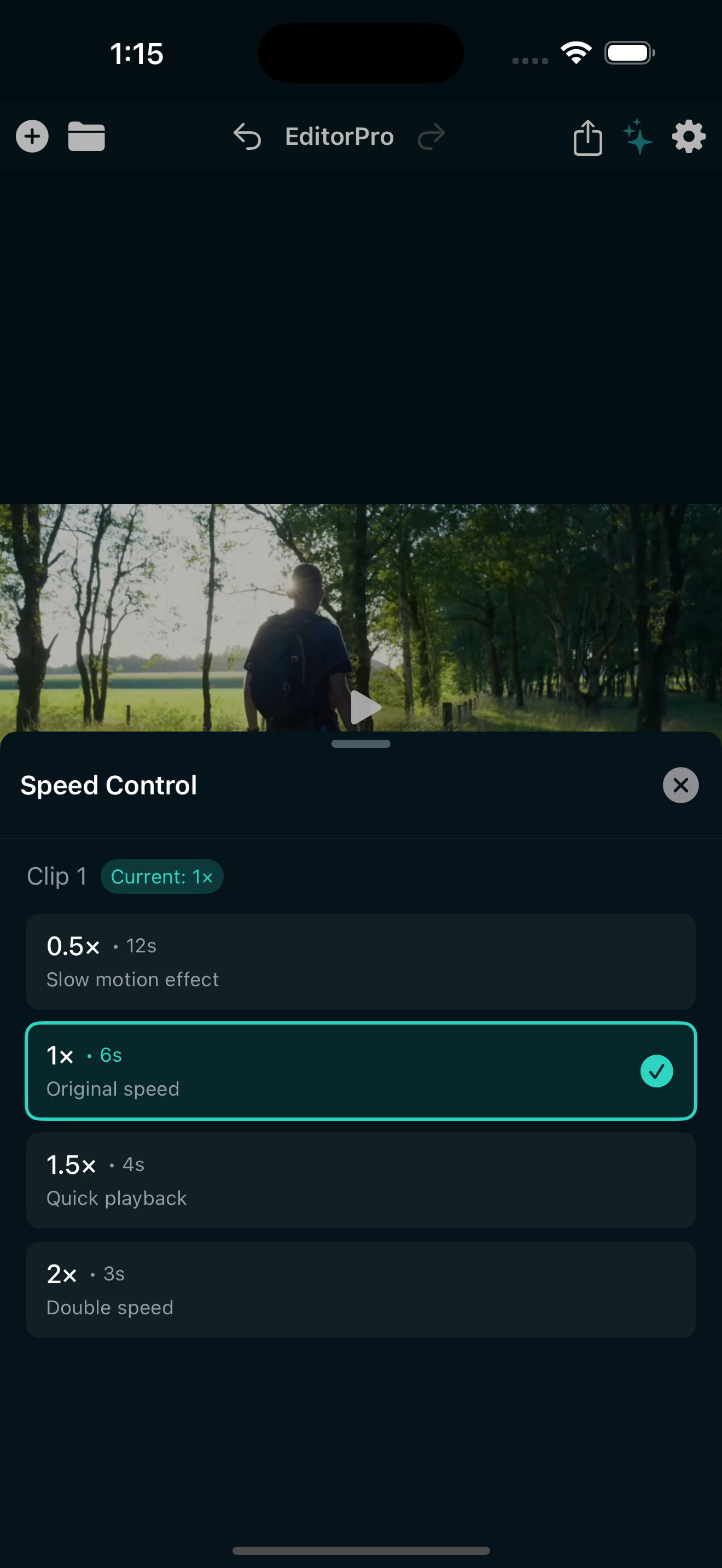
- Speed up slow steps. Kneading dough, waiting for oil to heat, or a long simmer can be compressed. Set the clip speed to 2x (Double) to turn a 10-second clip into 5 seconds while keeping the motion visible.
- Slow down the hero shot. A slow-motion pour of sauce or a cheese pull gets more attention at 0.5x (Slow). The dramatic motion makes people stop scrolling.
To change speed, tap a clip, select Speed in the bottom tool strip, and choose from 0.5x, 1x, 1.5x, or 2x. The resulting duration is shown so you know exactly how long the clip will be after the change.
Step 5: Apply a filter that makes food look good
Color is critical for food content. A slightly warm, vibrant grade makes ingredients look fresh and appetizing. EditorPro has 138 filter presets across 8 categories, and a few work especially well for cooking videos:
- Vibrant (Color Pop) - pumps up saturation and contrast. Great for colorful ingredients like vegetables and fruit.
- Summer (Color Pop) - adds warmth and brightness. Good for grilled food and outdoor cooking.
- Warm Tones - look in the Mood category for filters like Cozy or Energetic that add a warm cast without going overboard.
- Reels Magic (Social) - tuned specifically for Instagram Reels. A safe default if you want a polished social look without thinking too hard about it.
- Clean Look (Modern/Trending) - a minimal, bright grade that works well if your footage already has good natural light.
Tap Filters in the bottom tool strip, browse the categories, and tap a preset to apply it. Use the intensity slider (0 to 100%) to dial it in. For food, 50 to 70% is usually enough: you want the colors to pop without looking unnatural. Toggle the scope to apply the filter to all clips at once for a consistent look.
Step 6: Add transitions between steps
Transitions help a cooking video feel rhythmic. The right choice depends on your style:
- Cross Dissolve or Film Dissolve (Basic) - clean and professional. Good for calm, step-by-step recipe videos.
- Whip Pan Right or Whip Pan Left (Motion) - energetic and fast. Great for jumping between prep steps in a high-energy cooking clip.
- Zoom In or Zoom Out (Motion) - draws attention to a detail or pulls back to reveal the full dish.
- Light Leak (Recommended) - adds a warm, food-magazine feel. Works well for the transition into the final hero shot.
Tap Transition in the bottom tool strip, choose Transition In or Transition Out, and pick a preset. Set the duration to 0.5 seconds for quick cuts or 1.0 second for a more relaxed pace. You can apply a transition to one clip or all clips at once.
Step 7: Add text for ingredients and steps
Text overlays are what turn a cooking video into a recipe. Use them to show ingredient names, measurements, or step numbers. EditorPro has 13 text styles, and these work best for food content:
- Plain - clean and readable. Good for ingredient labels.
- Background - adds a solid background behind the text. Useful when the footage behind is busy.
- Typewriter - adds a playful, step-by-step feel that matches the cooking format.
- Stamp - bold and punchy. Good for the final dish name or a call to action.
Tap Text in the bottom tool strip, type your text, and position it by dragging on the preview. Pinch to resize and use two fingers to rotate. Set a start time and duration so each text overlay appears only during the relevant clip. Keep text short: one or two words per overlay, and limit yourself to 4 or 5 overlays total.
Step 8: Layer in music and sound effects
Audio is half the experience of a cooking video. EditorPro has a built-in library with 44 sound effects and 9 background music tracks, so you do not need to source audio elsewhere.
For background music, tap Music in the bottom tool strip and switch to Background Music. Look for upbeat tracks like Upbeat Vibes 1 or Reel Upbeat for energetic cooking, or something calmer like Fresh Couple Romance for a more relaxed, aesthetic style. Set the volume low enough that it supports the video without overpowering it, and add a fade-out at the end.
For sound effects, switch to Clip Audio in the same panel. Add a Swoosh or Fast Sweep under a whip-pan transition, a Camera Flash for the final dish reveal, or a Ding when a step finishes. Sound effects add a layer of polish that most cooking videos skip, and they are free to use.
For a deeper walkthrough, see the sound effects guide.
Step 9: Set the right aspect ratio and export
If you shot vertical but your clips have black bars on the sides, tap Aspect in the bottom tool strip and select Portrait (9:16). Choose a fill mode: Zoom to Fill if your footage is close enough, or Blur Background if you want to keep the full frame with a blurred backdrop.
When everything looks right, tap the share icon in the top toolbar. For Reels and TikTok, 1080p HD is the best choice: sharp, fast to upload, and widely supported. Pick Best Quality mode for the cleanest render. The video saves to your Photos library and you can share it directly from there.
Free exports include a small watermark in the bottom-right corner. If you are posting cooking videos regularly, upgrading to Pro removes the watermark and unlocks 4K export. Pro is $2.99 per month or $14.99 per year with a 7-day free trial on the annual plan.
Quick checklist for a cooking video
- 5 to 8 vertical clips, 3 to 10 seconds each, shot in natural light.
- Arrange in order: ingredients, prep, cooking, plating, hero shot.
- Trim tight. Aim for 15 to 30 seconds total.
- Speed up slow steps (2x), slow down the hero shot (0.5x).
- One filter applied to all clips at 50 to 70% intensity.
- Quick transitions (0.5s) between steps, a Light Leak for the final reveal.
- 4 to 5 short text overlays for ingredients and step labels.
- Upbeat background music plus 2 to 3 sound effects for polish.
- Export at 1080p HD, Best Quality, in 9:16 vertical.
That is the full process. The combination of speed changes, a food-friendly filter, and a few well-placed sound effects is what separates a scroll-past cooking clip from one that saves and shares. Once you settle on a filter and a music track you like, you can reuse them on every recipe video for a consistent look.
Start making cooking videos today
EditorPro has 138 filters, 37 transitions, and a built-in sound effects library. Free to download, made for iPhone.
Download on the App Store