
How to Make a Highlight Video on iPhone
You just finished a season, a tournament, or a single great game, and your camera roll is full of clips. Somewhere in there is the goal, the dunk, the pin, the sprint finish, and the celebration that followed. What you need now is a highlight video: a tight 30 to 60 second cut that shows the best moments and nothing else.
The good news is that you can make a highlight video on iPhone in one sitting, with no computer and no editing course. Here is the whole process, step by step, from raw footage to a reel you will be proud to post or send to a coach.
First, decide what belongs in the reel
Before you touch an editing tool, make a few decisions that will save you an hour later:
- Keep it short. Aim for 30 to 60 seconds total, made of your 8 to 12 best moments. A highlight video is a trailer, not the full game.
- Lead with your strongest play. Viewers decide in the first few seconds whether to keep watching, so put the best moment first, not third.
- Pick the frame before you edit. Vertical 9:16 is the default for Reels, TikTok, and Shorts. Landscape 16:9 makes sense if the video is mainly for YouTube or a recruiting profile.
- Collect the clips first. Scroll your camera roll and note which clips have real moments. Half of a good highlight video is selection, not effects.
Step 1: Import your footage
Open EditorPro and start a new project. Tap the + button in the top bar to bring in your game clips. You can select up to 10 items at a time, so if you have more, just repeat the import until everything is on the timeline.
Your clips appear in order on a horizontal timeline. If a parent or teammate filmed from the stands, you will have plenty of dead air, and that is exactly what the next step fixes.
Step 2: Trim down to the moments that matter
This is where a highlight video gets made. Tap a clip and drag the trim handles at its start and end to cut the footage so only the play itself remains. A few rules of thumb:
- Start a second before the action begins, so the viewer can see the setup.
- End shortly after the whistle or the celebration, not long after.
- Keep each moment to roughly 3 to 6 seconds of screen time.
If the good part sits in the middle of a long clip, use Split to cut the clip at the playhead, then trim or delete the pieces you do not need. And if you want an instant replay of the best goal, tap Duplicate to copy that clip in place and slow the second copy down.
Mistakes are cheap here. Every edit is undoable, and undo survives even an app restart, so you can experiment freely.
Step 3: Order the clips into a story
Highlights are not just a pile of plays. They have an arc: your strongest moment up front, a mix of different skills in the middle (offense, defense, speed, teamwork), and the celebration or final whistle at the end.
To rearrange, touch and hold a clip, then drag it to its new position on the timeline. Watch the whole reel once from the top and cut anything that makes you reach for the skip.
Step 4: Slow down the money moment
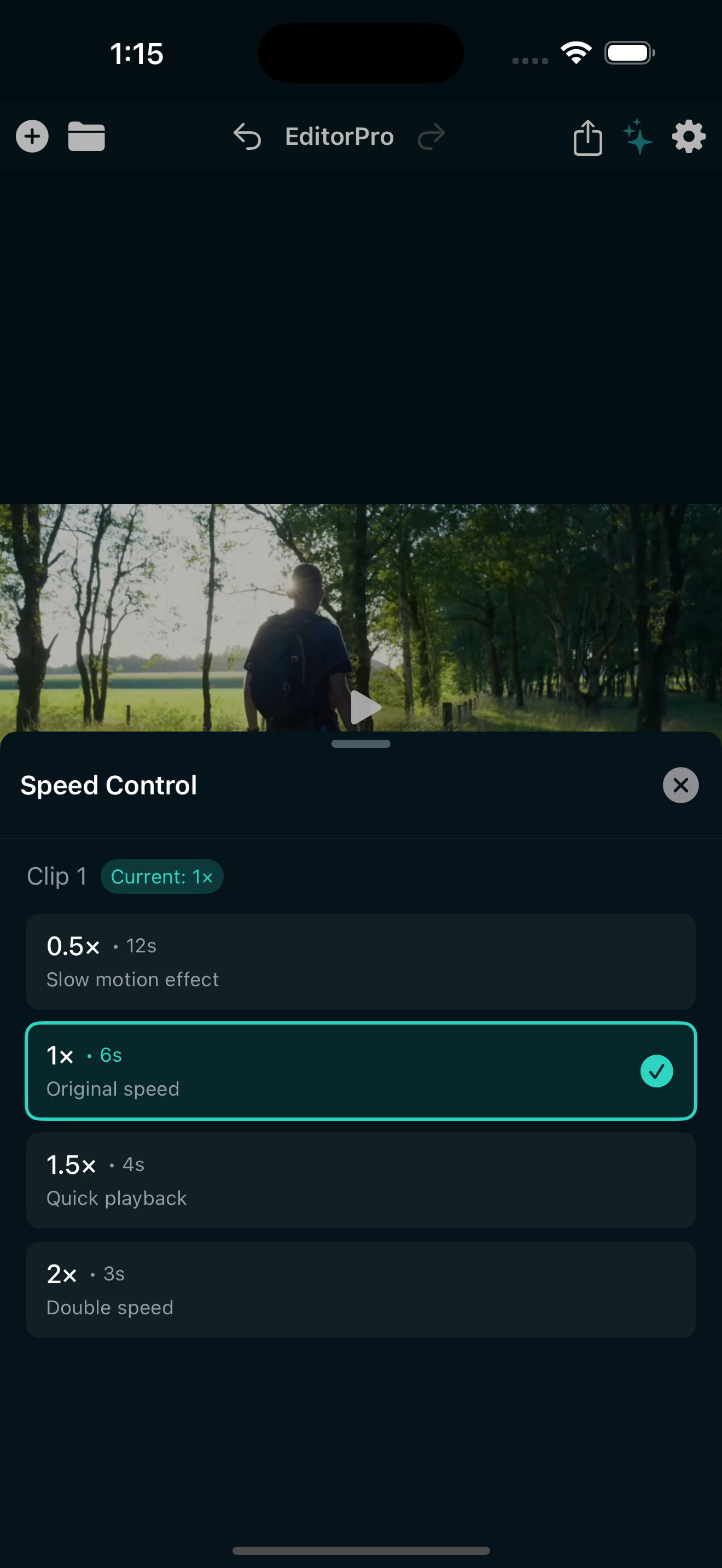
Every highlight video has one play that deserves a slow-motion replay. Tap that clip, then tap Speed and choose 0.5x (Slow). The tool shows you the resulting duration, so you can see exactly how long the slowed clip will run.
For variety, you can speed other clips up: 1.5x (Fast) or 2x (Double) works well for full-field runs or transitions between plays. If you want to go deeper on ramping speed up and down inside a single clip, see how to slow down a video on iPhone.
Step 5: Add name, number, and stat overlays
If this highlight video will be seen by recruiters, teammates, or a college coach, put your name and position on screen. Tap Text in the tool strip, type your text, and pick a style. Styles like Shadow and Outline stay readable over busy footage, while Neon and Background give a broadcast feel.
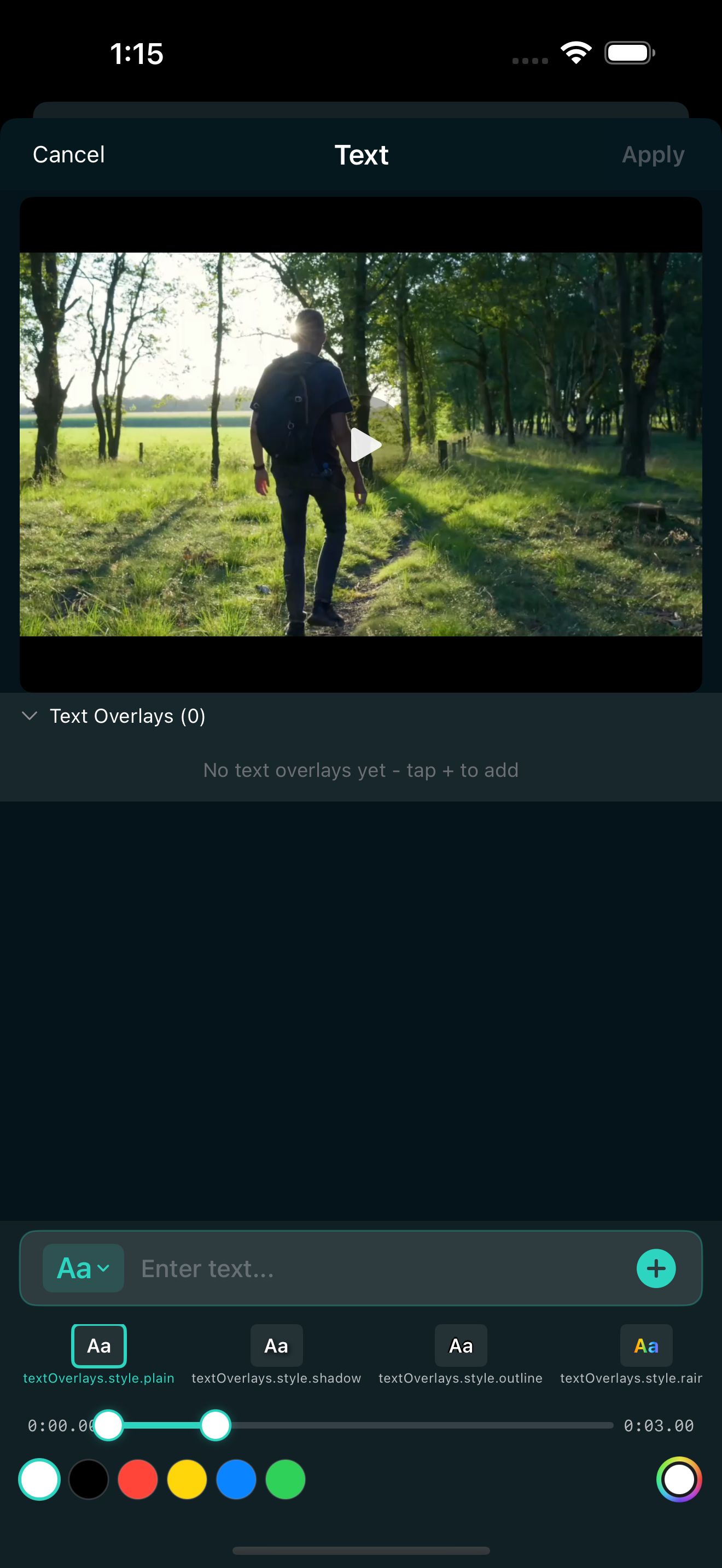
Drag the overlay to position it, pinch to resize it, and set a start time and duration so it appears exactly when the play happens, then disappears. You can stack several overlays in a project (up to 50), which is handy for adding stats to individual clips. For a full walkthrough of timing and positioning, see how to add captions to a video on iPhone.
Step 6: Set the frame for the platform
If you filmed vertical and want to post wide, or filmed wide and want to go vertical, tap Aspect. Choose Portrait (9:16) for Reels and TikTok, or Landscape (16:9) for YouTube.
Mixed footage is common in highlight videos, since games get filmed from all angles. Fill modes clean up the mismatches: Blur Background fills the empty space around a narrow clip with a blurred copy of itself, and Zoom to Fill crops a wide clip to fill a vertical frame. Fit keeps everything visible with black bars, which is fine for a recruiting profile.
Step 7: Add music and beat energy
Tap Music to add a soundtrack. The built-in library includes background music tracks across upbeat, party, and cinematic moods, plus short sound effects like risers and whooshes that pair well with fast cuts. Because the audio from your clips (crowd, whistle, commentary) can clash with music, use the per-clip Volume and Mute controls to keep the loudest game sounds under the track.
For extra punch on the beat, a few well-placed effects do a lot: Shake on a big hit or a dunk, Zoom In on the moment of contact. You can use up to 5 effects per clip, each with adjustable intensity, so a little goes a long way. Between clips, quick transitions like a whip pan or a simple cross dissolve keep the pacing tight without stealing attention from the plays.
Step 8: Export and share
Tap the share icon in the top toolbar. Pick a quality tier: 720p and 1080p are free, and 4K Ultra is available with Pro. Choose Best Quality if the video is going somewhere it needs to look sharp, such as a recruiting profile, and Quick Export when speed matters more. The finished MP4 saves straight to Photos, ready for Instagram, TikTok, YouTube, or a message to a coach.
One thing to know: free exports include a small watermark. For most social posts that is fine, but if this reel is part of a highlight package you are sending to recruiters or clubs, a watermark-free 4K export is the cleaner look. That is what Pro is for, and it costs less than a sports drink per month.
Quick recap
- Select 8 to 12 moments, lead with the best one, keep it under 60 seconds.
- Trim hard, split long clips, duplicate for replays.
- Slow the money moment to 0.5x.
- Overlay name and stats with the Text tool.
- Set 9:16 or 16:9 with the right fill mode.
- Finish with music, a couple of beat effects, and a clean export.
Make your highlight reel today
EditorPro has everything this guide uses, from trimming and slow-mo to text overlays and music, all in one free iPhone app.
Download on the App Store