
How to Make a Product Video on iPhone
A good product video does not need a studio or a professional crew. Your iPhone shoots high-quality footage, and with the right editing choices, you can turn a few clips into a polished, sales-ready video that looks like it came from a brand team. The key is keeping things clean: tight trims, accurate color, simple transitions, and a crisp export.
This guide walks through the full process on iPhone using EditorPro, with a focus on the Pro filter category, a set of 13 color presets designed specifically for product, interview, and business content.
Step 1: Shoot your product clips
Before you edit, you need the right raw footage. A few quick tips:
- Use natural light when possible. A window with indirect light gives you soft, even shadows. Avoid harsh overhead lights that create hot spots on shiny surfaces.
- Shoot in a consistent orientation. Square (1:1) works well for Instagram feed posts, vertical (9:16) for Reels and Stories, and landscape (16:9) for YouTube or your website. Pick one before you start filming.
- Capture 3 to 6 short clips. A wide shot for context, a medium shot showing the product in use, and a couple of close-up detail shots. Keep each clip between 3 and 8 seconds.
- Lock exposure. Tap and hold on your subject in the Camera app to lock focus and exposure. This prevents the brightness from shifting mid-clip.
Step 2: Import and arrange your clips
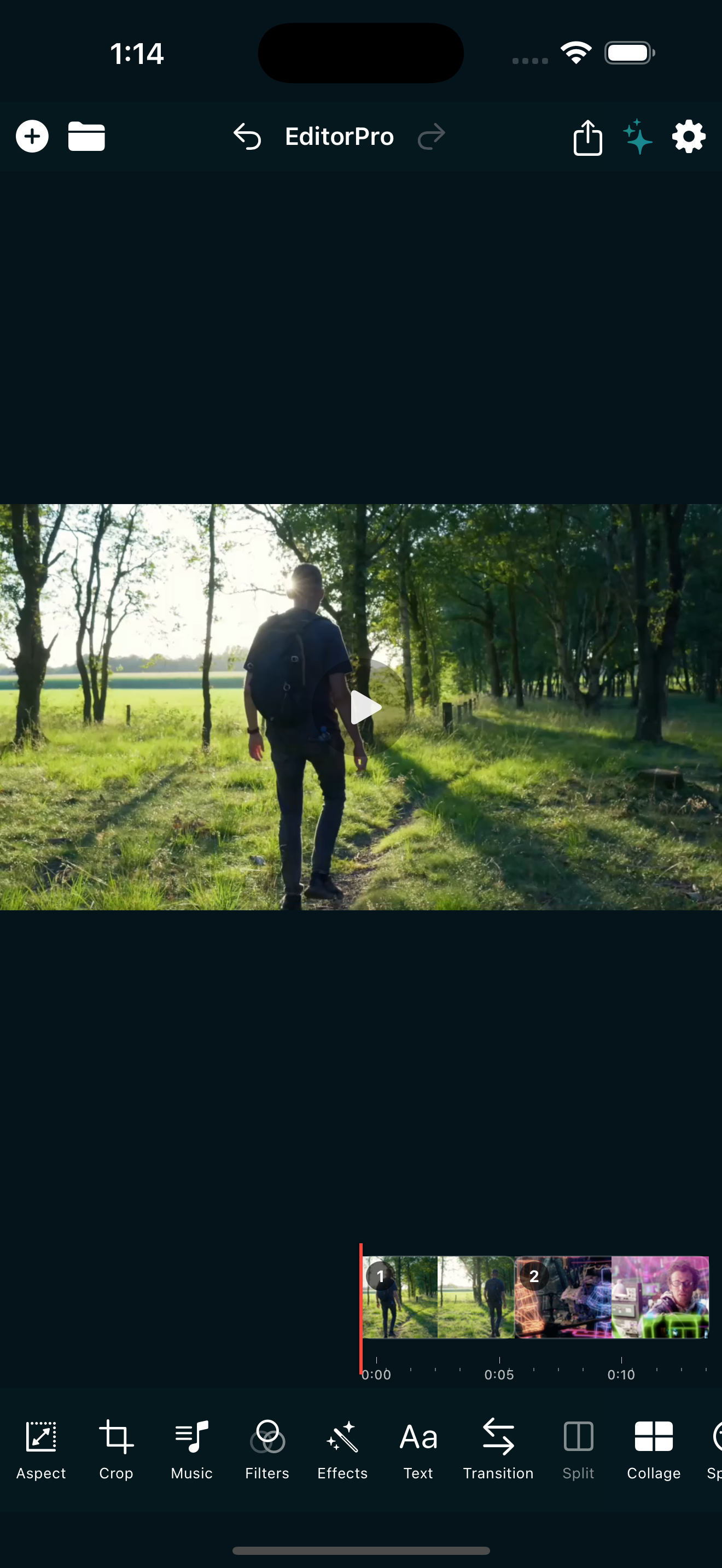
Open EditorPro and create a new project. Tap the + button in the top bar to import your clips. You can add up to 10 items at a time. Photos automatically become 5-second clips, and video clips import at their original length.
Once your clips are on the timeline, reorder them by long-pressing a clip and dragging it into position. A logical flow for a product video is: wide context, product in use, close-up details, and a final shot that shows the product from its best angle.
Step 3: Trim and split for pacing
A product video should be tight. Every second should earn its place. Trim each clip by tapping it and dragging the handles to adjust the in and out points. If a clip has a good moment buried in the middle, use Split to cut it at the playhead and keep only the part you need.
Aim for a final video between 15 and 30 seconds for social, or up to 60 seconds for a website or product page. Shorter is almost always better.
If you have not used the trim and split tools before, the trim and split guide walks through them in detail.
Step 4: Apply a Pro filter for clean color
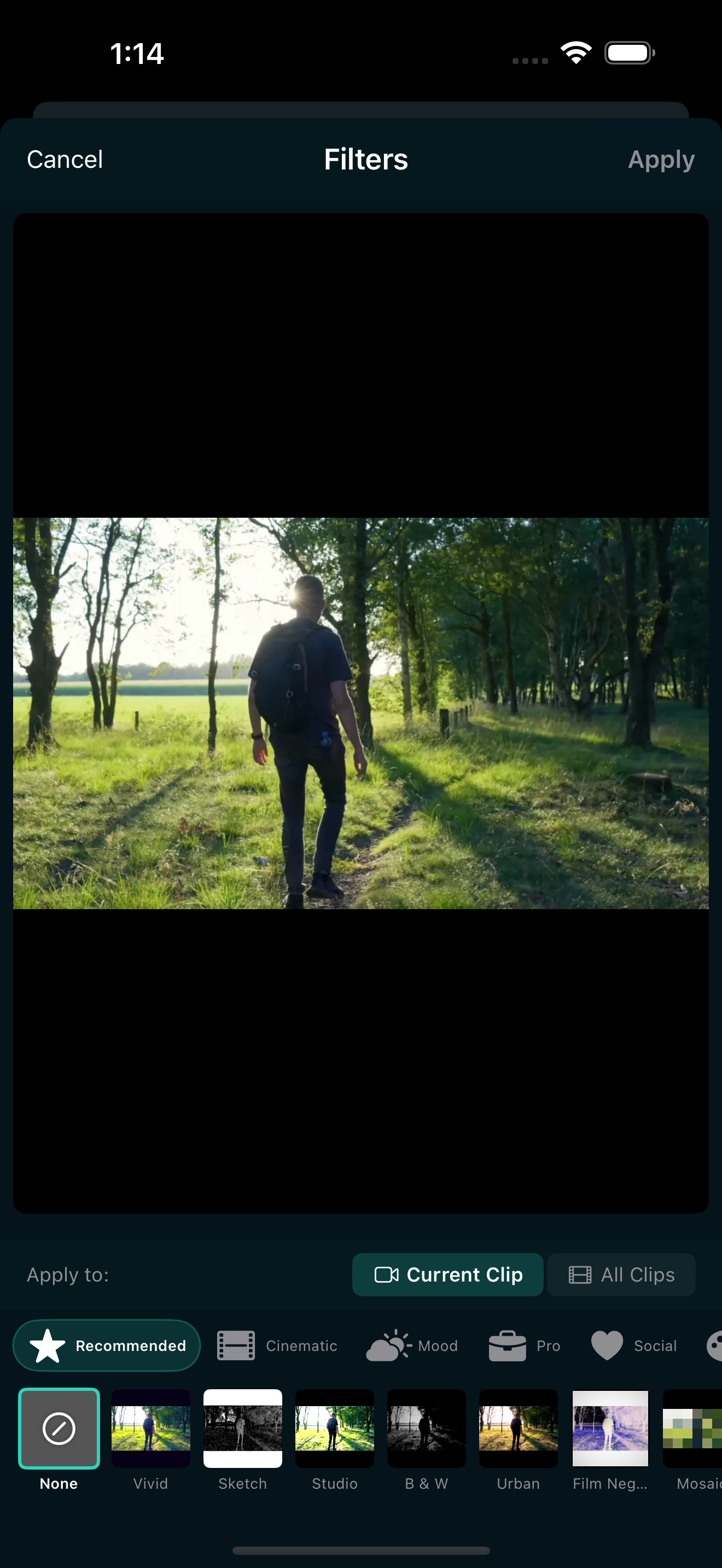
This is where your product video goes from "phone footage" to "brand content." EditorPro has a dedicated Pro filter category with 13 presets built for exactly this use case:
- Product - balanced contrast and saturation that makes product shots look polished without looking over-processed.
- Studio - a clean, neutral grade that mimics studio lighting. Great for consistent, catalog-style footage.
- Clarity - sharpens edges and lifts midtones. Good for products with fine detail or texture.
- Enhance - a subtle all-around lift. Slightly brighter, slightly crisper, without changing the natural color.
- Clean - strips out warm or muddy tones for a fresh, minimal look. Pairs well with white backgrounds.
- Real Estate - widens dynamic range and corrects perspective-leaning color. Useful for interior shots or larger products.
- Corporate - a muted, professional grade for B2B content or talking-head clips.
- Interview - soft skin tones with controlled contrast. Ideal if your product video includes a person talking.
- Headshot - flattering skin tones with a slight sharpen. Good for founder or testimonial clips.
- LinkedIn - a business-appropriate look that is clean but not flashy.
To apply a filter, tap Filters in the bottom tool strip, swipe to the Pro category, and tap a preset. Use the intensity slider (0 to 100%) to dial it in. For product videos, 60 to 80% intensity is usually the sweet spot: enough to clean up the color, not so much that it looks filtered.
You can apply a filter to one clip at a time or toggle the scope to apply it across all clips for a consistent look.
Step 5: Add transitions that do not distract
For product videos, transitions should be invisible. A Cross Dissolve or Film Dissolve between clips keeps the focus on the product, not on the edit. Avoid whip pans, glitches, or light leaks here: they signal "social content" when you want to signal "quality product."
To add a transition, tap Transition in the bottom tool strip, choose Transition In or Transition Out, and pick from the Basic category. Set the duration to 0.5 or 1.0 seconds. You can apply it to one clip or all clips at once.
Step 6: Add text for key details
A short text overlay can communicate your product name, price, or a key benefit. EditorPro has 13 text styles, and for product videos, the cleanest options are Plain, Background, and Shadow. These keep text readable without competing with the product.
Tap Text in the bottom tool strip, type your text, and position it by dragging on the preview. Pinch to resize and use two fingers to rotate. Set a start time and duration so the text appears only when the relevant clip is on screen. Keep text to one or two words per overlay, and limit yourself to two or three overlays total.
Step 7: Add music (optional)
Music can set the tone, but for product videos it should stay subtle. Tap Music in the bottom tool strip and switch to Background Music. EditorPro has 9 built-in background tracks. For a product video, look for something calm and neutral rather than upbeat and busy.
Set the music volume low enough that it does not compete with the visual. A fade-out at the end keeps the finish smooth. If your product video includes a voiceover or a person talking, skip background music entirely or keep it very quiet.
For more on audio, see the music guide.
Step 8: Export at the right quality
For social media, 1080p HD is the sweet spot: sharp enough to look professional, small enough to upload quickly. For your website or a product page, 1080p is also fine. If you need maximum resolution, 4K Ultra is available with Pro.
Tap the share icon in the top toolbar, choose your quality tier, and pick Best Quality for product content. The video saves to your Photos library and you can share it directly to whichever platform you need.
One thing to note: free exports include a small watermark in the bottom-right corner. If you are publishing product videos regularly, upgrading to Pro removes the watermark and unlocks 4K export. Pro is $2.99 per month or $14.99 per year with a 7-day free trial on the annual plan.
Quick checklist for a product video
- 3 to 6 short clips, shot in consistent lighting and orientation.
- Trimmed to 15 to 30 seconds for social, up to 60 for web.
- One Pro filter applied to all clips at 60 to 80% intensity.
- Cross Dissolve transitions, 0.5 to 1.0 seconds.
- One to three text overlays max, each under two seconds.
- Subtle background music or none at all.
- Export at 1080p HD, Best Quality mode.
That is the full process. The Pro filter category does most of the heavy lifting: it is specifically designed to make footage look commercially clean without needing a color grading workflow. Once you find a preset that works for your product type, you can reuse it on every video for a consistent brand look.
Make product videos that look professional
EditorPro has 13 Pro filters built for product and business content. Free to download, made for iPhone.
Download on the App Store