
How to Make Colors Pop in a Video on iPhone
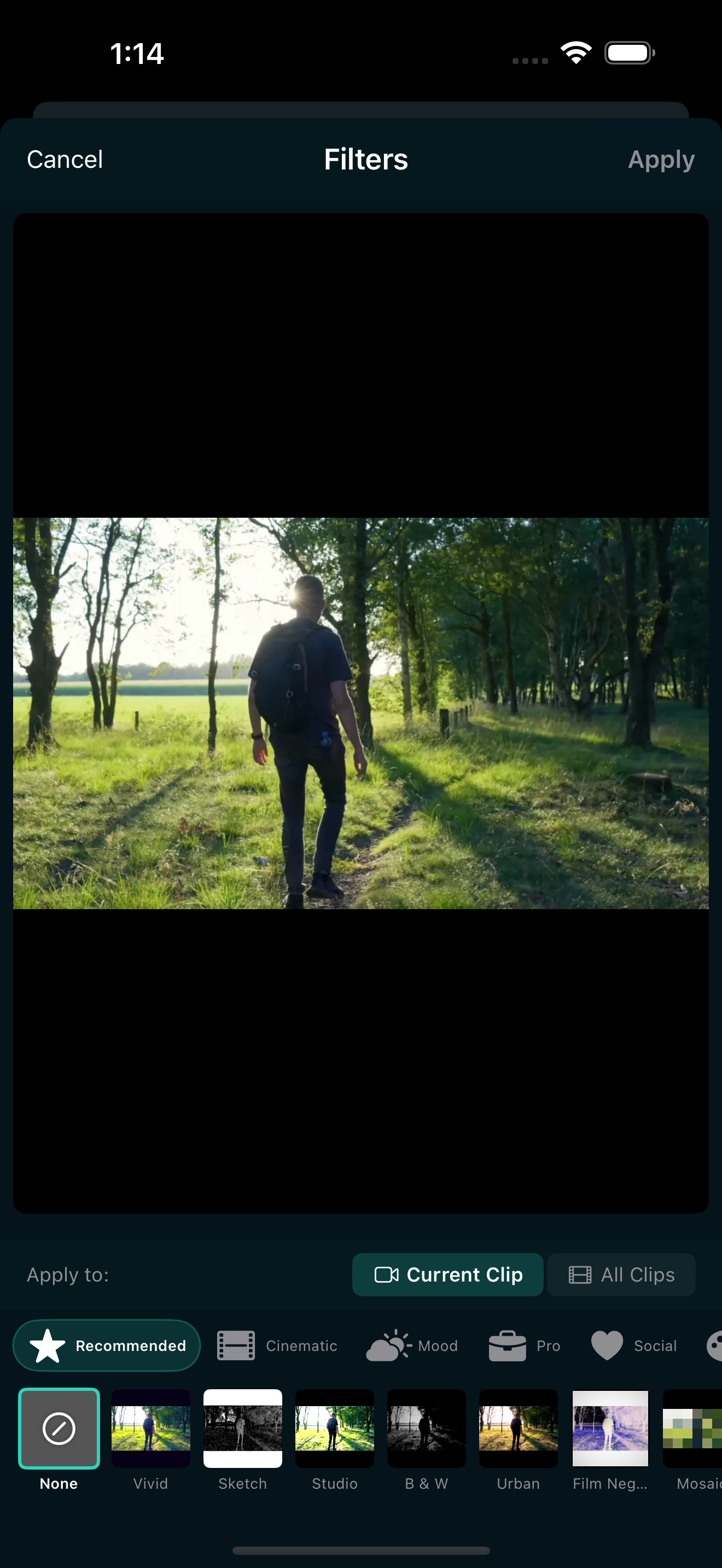
You shot a great clip, but the colors look flat. The sky is pale, the skin tones are washed out, and the whole thing feels lifeless compared to what you actually saw. If you are editing on iPhone, you do not need a desktop color grading suite to fix this. You need the right filter.
One of the fastest ways to make colors pop in a video on iPhone is the Color Pop filter category in EditorPro. It includes 19 presets built specifically for vivid, saturated looks, and every one of them is free. Here is how to use them, which presets work best for which footage, and a few editing tips to keep things looking bold without going overboard.
What are Color Pop filters?
Color Pop is one of eight filter categories in EditorPro. Where Cinematic filters aim for film-grade subtlety and Vintage filters chase a retro feel, Color Pop is all about punch. These presets boost saturation, deepen contrast, and push hues toward their most vivid version. They are designed for content that needs to grab attention in the first second, which makes them a natural fit for Reels and TikTok.
All 138 filters in EditorPro are free, including every Color Pop preset. You also get an intensity slider (0 to 100 percent) so you can dial the effect up or down instead of accepting an all-or-nothing look.
The 19 Color Pop presets and when to use them
Here is the full list, grouped by what they do best:
Bold and punchy
- Vibrant: The all-rounder. Lifts every color evenly without skewing warm or cool. Start here if you are not sure which to pick.
- Ultra Vibrant: Vibrant turned up a notch. Good for footage that still looks tame after the first pass.
- Electric: Pushes toward neon territory. Works on night clips, city lights, and anything with strong primary colors.
- Bold (listed under Mood, but pairs well here): High contrast with deep saturation.
Neon and night
- Neon: Adds a neon glow to highlights. Great for evening street footage and concert clips.
- Neon Nights: Darker base with electric highlights. Use this for night markets, city skylines, and club clips.
Soft and bright
- Pastel: Lifts saturation but keeps tones soft. Good for lifestyle content and aesthetic vlog clips.
- Candy: Sugary, warm pinks and blues. A fit for fashion and beauty content.
- Rainbow: Enhances the full spectrum. Fun for travel and festival footage.
Seasonal and nature
- Spring: Fresh greens and soft pinks. Perfect for outdoor clips in bloom.
- Summer: Warm golds and bright blues. Beach, pool, and sun clips.
- Autumn: Rich oranges and deep reds. Fall foliage and cozy outdoor shots.
- Winter: Cool blues and crisp whites. Snow scenes and overcast days.
- Sunset: Golden orange and magenta. The one to reach for at golden hour.
- Ocean: Deep teal and azure. Underwater, beach, and pool clips.
- Forest: Saturated greens and earthy browns. Hiking and nature footage.
- Desert Sun: Warm ambers and dusty pinks. Arid landscapes and road trips.
Event and celebration
- Miami: Hot pinks and turquoise. Party and beach vibes.
- Festival: Multi-color boost with high energy. Concerts, parades, and celebrations.
- Aurora: Cool greens and purples. Night sky and landscape clips with an ethereal edge.
How to apply a Color Pop filter step by step
- Open your project in EditorPro and tap the clip you want to adjust so the playhead sits on it.
- Tap Filters in the bottom tool strip.
- Swipe through the category tabs until you reach Color Pop.
- Tap any preset to preview it live on your clip. The preview updates instantly.
- Use the intensity slider below the presets to fine-tune the strength. Somewhere between 60 and 80 percent is the sweet spot for most footage. Go to 100 percent only if the original was very flat.
- Toggle the scope button if you want the filter applied to all clips instead of just the current one. This is handy when you want a consistent look across an entire reel.
- Tap outside the panel to close it. The filter stays applied and is fully undoable.
If you change your mind later, just open the Filters panel again and pick a different preset or adjust the intensity. Filters are non-destructive, so you can experiment freely without worrying about losing your original footage.
Tips for colors that pop without looking fake
More saturation is not always better. Here are a few things to keep in mind:
- Start with good footage. Filters enhance what is already there. If your clip is badly exposed or badly lit, cranking saturation will make it look worse, not better. Shoot in good light when you can.
- Watch skin tones. Heavy saturation can push skin toward orange or red. If faces look unnatural, drop the intensity or try Pastel or Candy, which are gentler on warm tones.
- Match the filter to the scene. Ocean on a beach clip looks intentional. Ocean on a kitchen shot looks odd. Pick the preset that aligns with what is actually in the frame.
- Use the scope toggle wisely. Applying one filter to all clips gives a cohesive look. But if your clips come from different locations or lighting conditions, per-clip filtering often looks more natural.
- Pair with the right aspect ratio. Bold colors hit harder when they fill the screen. Switch to 9:16 for Reels and TikTok so your vivid footage has no black bars eating the edges.
Combining Color Pop filters with other edits
A filter does most of the heavy lifting, but a few extra touches can take the result further:
- Add a transition that matches the energy. Whip pans and zoom transitions pair well with high-saturation looks. Cross dissolve works better if you want the colors to speak for themselves.
- Drop in a sound effect from the built-in library. A whoosh or impact sound on a cut between two boldly colored clips makes the whole thing feel more dynamic.
- Add text in a matching tone. A short caption in a bright color, using one of the 13 text styles, ties the visual together without much effort.
- Use the AI assistant if you want a quick opinion. Tap the sparkles icon and type something like "make the colors more vibrant" or "give this a summer look." The assistant applies a filter for you, and you can adjust from there.
Export settings for vivid video
Once your colors look right, export at the highest quality your plan allows. Free users can export at 720p or 1080p with a small watermark. Pro users get watermark-free exports and 4K Ultra output at 35 Mbps, which preserves every bit of that color work.
If you are posting to Reels or TikTok, 1080p is plenty for the platform. The key is to avoid compressing your colors away with a low-bitrate export. Pick 1080p HD (10 Mbps) or higher and let the platform do its own compression from a clean source.
Make your colors pop for free
EditorPro includes 19 Color Pop filters and all 138 presets at no cost. Download it on iPhone and give your footage the punch it deserves.
Download on the App Store