
Best Video Filters for Reels and TikTok on iPhone
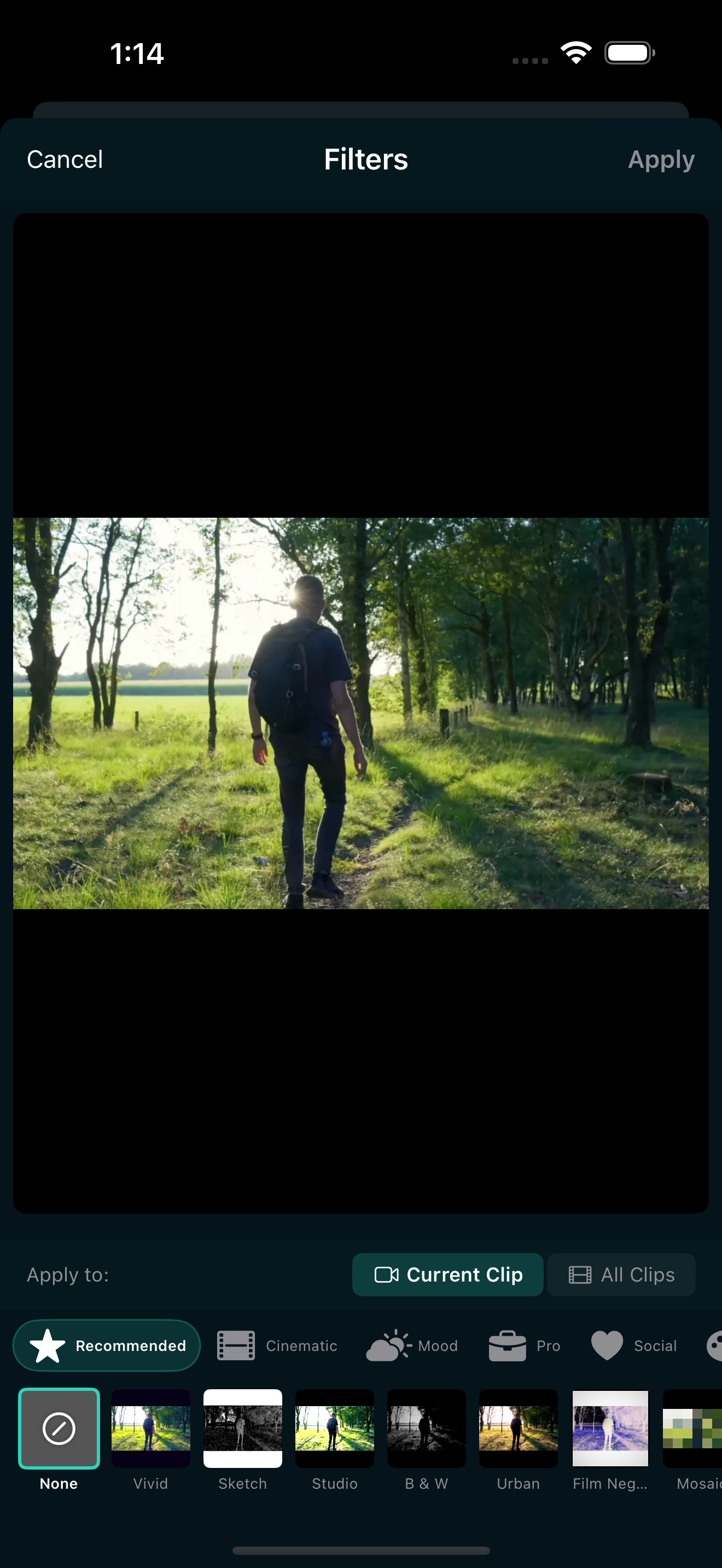
If you scroll Reels or TikTok for more than a minute, you will notice that the best-looking clips share something: a consistent color grade. It is not a fancy camera or a desktop plugin. It is a filter applied with intention. The right filter can make a plain phone clip look like it was shot on film, or give a talking-head video the warm glow people associate with a polished creator.
This guide walks through the best video filters for Reels and TikTok on iPhone, focusing on two categories built specifically for social content: Social filters and Trending (Modern) filters. All 138 filters in EditorPro are free, so you can experiment without hitting a paywall.
Why filters matter for short-form video
Reels and TikTok are consumed fast. A viewer gives you about two seconds before they decide to scroll. A filter does three things in those two seconds:
- Sets a mood. Warm tones feel inviting. Cool tones feel cinematic. Saturated pops feel fun.
- Creates consistency. Applying the same filter across multiple clips makes a feed look cohesive, which is what converts casual viewers into followers.
- Hides imperfections. A graded filter smooths out mixed lighting, odd white balance, and slightly underexposed shots.
The goal is not to slap a filter on and call it done. It is to pick a look that matches your content and apply it deliberately.
Social filters: built for the platform aesthetic
EditorPro has a dedicated Social filter category with 15 presets tuned to the looks that perform well on each platform. Here are the ones worth knowing:
Reels Magic and Reels Pop
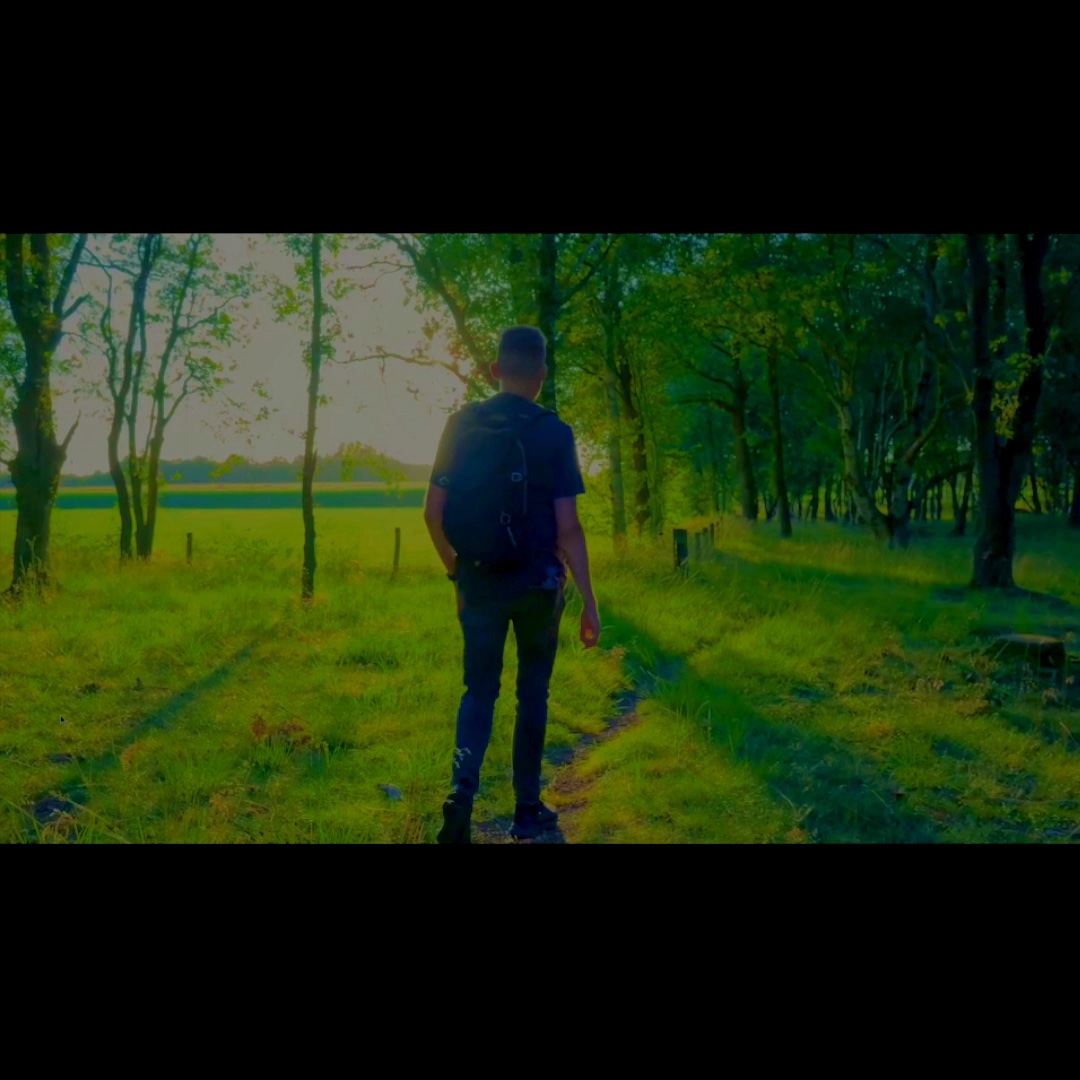
Reels Magic adds warmth and a slight contrast bump that makes skin tones look healthy and colors pop without looking oversaturated. It is the safe default for lifestyle, food, and travel Reels.
Reels Pop goes further: higher saturation, crisper shadows. Use it when your footage is a little flat and you want it to jump on the feed.
Story Glow and Story Mode
Both are designed for vertical Stories and Reels where you want a soft, flattering light. Story Glow adds a gentle brightness lift. Story Mode is slightly more muted, good for talking-head clips where you do not want the filter to distract from what you are saying.
TikTok Vibrant and TikTok Soft
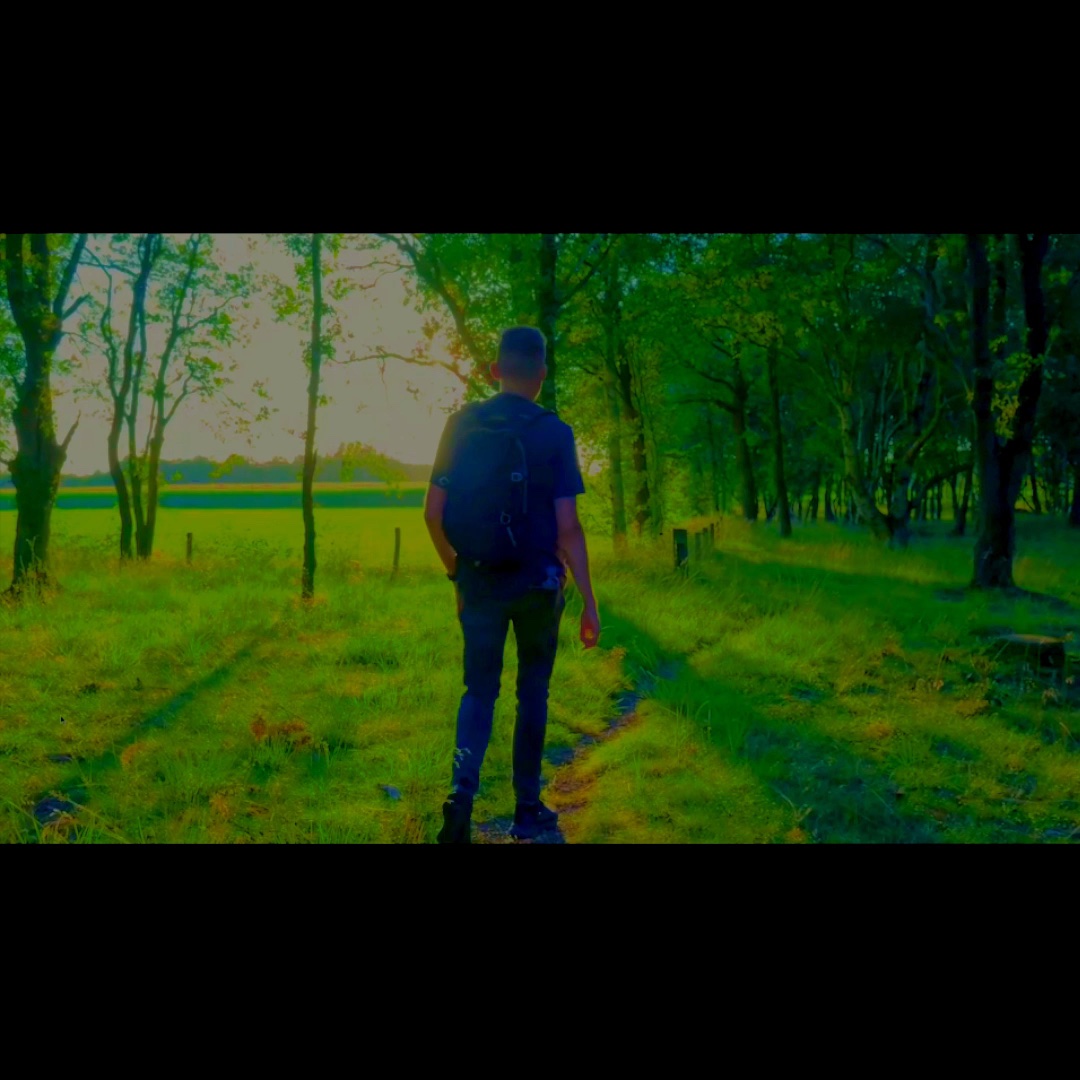
TikTok Vibrant pushes saturation and contrast for the punchy look that performs well on TikTok's For You feed. TikTok Soft tones things down with a gentle fade that works well for slower, more intimate content.
VSCO A6 and VSCO HB2
These mimic the popular VSCO film presets. VSCO A6 is a clean, cool-toned look that works for minimal aesthetic content. VSCO HB2 has a warmer, filmier feel for travel and outdoor shots.
Selfie Boost, Snapchat Glow, Pinterest, and YouTube
Selfie Boost smooths and brightens for front-camera clips. Snapchat Glow adds a warm halo effect. Pinterest gives a muted, aspirational aesthetic. YouTube is a clean, neutral grade that works for longer-form talking clips.
Trending (Modern) filters: current creator looks
The Modern category (labeled "Modern" in the app, with 12 presets) covers the aesthetic trends that are circulating right now. These are the ones creators ask about most:
Viral Glow
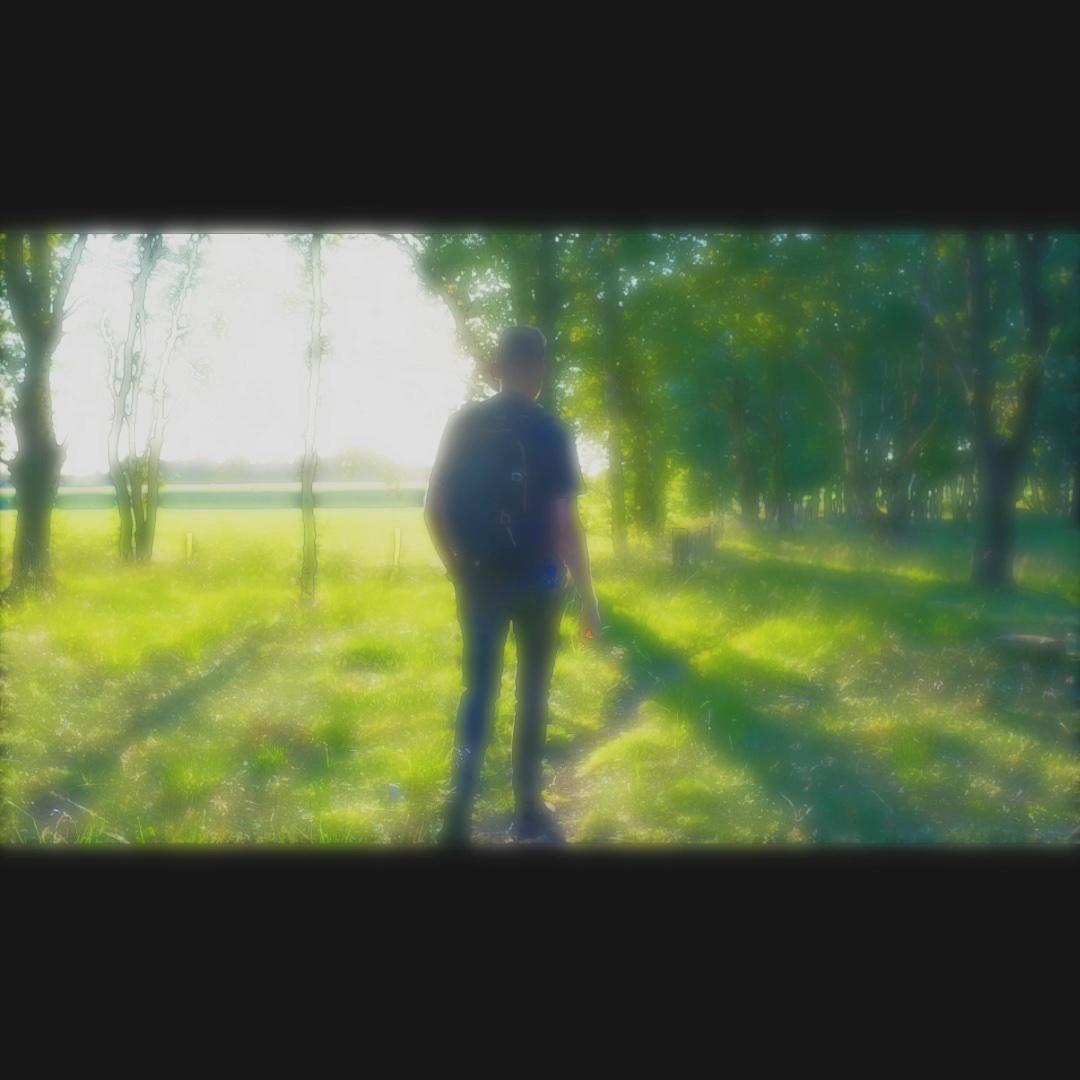
A soft, bright, slightly dewy look that has become the default for beauty and lifestyle creators. It lifts shadows and adds a subtle warm tint that makes skin look healthy on camera.
Main Character
A cinematic, slightly moody grade that makes everyday moments feel like a movie scene. Cooler shadows, warm highlights, gentle contrast. Pair it with a slow zoom transition for the full effect.
Y2K
A nostalgic early-2000s digital look: slightly crushed blacks, warm midtones, a hint of color shift. It pairs well with the VHS filter and retro effects we covered in a previous post.
Golden and Moody Blue
Golden adds a warm, golden-hour glow that works on almost any outdoor clip. Moody Blue shifts toward cool, desaturated blues for a more introspective, cinematic feel.
Clean Look and Soft Focus
When you want a filter that does not look like a filter, these two are your best bets. Clean Look is a subtle enhancement that corrects color and contrast without adding a stylistic tint. Soft Focus adds a gentle blur that flatters skin without looking artificial.
How to apply a filter on iPhone
Applying a filter in EditorPro takes three taps:
- Tap Filters in the bottom tool strip.
- Browse the category tabs and tap a filter to preview it on your clip.
- Use the intensity slider (0 to 100%) to dial the effect up or down, and toggle whether it applies to the current clip or all clips.
The live preview means you can try several filters in seconds and pick the one that works. If you change your mind later, swap the filter at any time. Edits are non-destructive, so nothing is permanent until you export.
Tips for choosing the right filter
- Match the filter to the energy of the clip. A high-energy dance video wants TikTok Vibrant or Reels Pop. A quiet morning routine wants Story Mode or Soft Focus.
- Use one filter per post. Consistency within a single video is more important than variety. If you want a shift, use a transition between sections instead of switching filters mid-clip.
- Dial down the intensity. A filter at 60% often looks more natural than at 100%. The slider is there for a reason. Use it.
- Apply to all clips at once. The scope toggle lets you apply a filter across every clip in your project so your look is consistent from start to finish.
- Shoot with a look in mind. If you know you want a Golden grade, shoot during golden hour. The filter enhances good footage; it does not rescue bad lighting.
Export settings for Reels and TikTok
Once your filter is applied, export at the right settings for the platform:
- Aspect ratio: 9:16 (Portrait) for both Reels and TikTok. You can change this with the Aspect tool before exporting.
- Resolution: 1080p HD is plenty for social feeds and is free in EditorPro. If you want maximum quality, 4K Ultra is available with Pro.
- Watermark: Free exports include a small watermark. If you post regularly, upgrading to Pro ($2.99/month or $14.99/year) removes it and unlocks 4K export, unlimited Auto Reel, and unlimited AI assistant access.
For a full walkthrough of clean exports, see our guide on how to export video without watermark on iPhone.
Try every filter for free
EditorPro includes 138 filters, including 15 Social and 12 Trending presets, all free. Download it on your iPhone and find the look that fits your feed.
Download on the App Store