
How to Put Two Videos Side by Side on iPhone
Putting two videos side by side is one of the most common edits people look for on iPhone. Maybe you want a reaction video, a before-and-after comparison, or a split-screen for a TikTok trend. Whatever the reason, the good news is you do not need a desktop editor to pull it off. You can do it right on your phone with a feature called Create Collage.
In this guide, you will learn how to put two videos side by side on iPhone, step by step, using the collage tool built into EditorPro. You will also pick up a few tips for making the result look clean instead of awkward.
What is a video collage?
A video collage is a layout that places two or more clips into separate cells on a single frame. Think of it like a photo collage, but each cell plays its own video at the same time. The result is one combined video file with all clips playing together.
EditorPro lets you build collages with 2 to 6 cells across more than 20 layout templates. You can add a photo or video to each cell, trim each one individually, mute the audio on any cell, and choose a background color for the borders. When you are done, you export the collage as a single clip onto your timeline so you can keep editing or share it directly.
Step-by-step: how to put two videos side by side
Step 1: Open Create Collage
You can reach the collage tool in three ways. From the start screen, tap the Create Collage card. If you are already in a project, open the import dialog and look for the collage option. You can also tap the Collage tool from the bottom tool strip inside the editor.
Any of these will open the collage layout picker.
Step 2: Pick a layout
Browse the layout templates. For a simple side-by-side video, choose a two-cell layout that splits the frame vertically (left and right). If you want a top-and-bottom split, pick a horizontal two-cell layout instead. Layouts go up to six cells if you ever need more than two.
Step 3: Add your videos
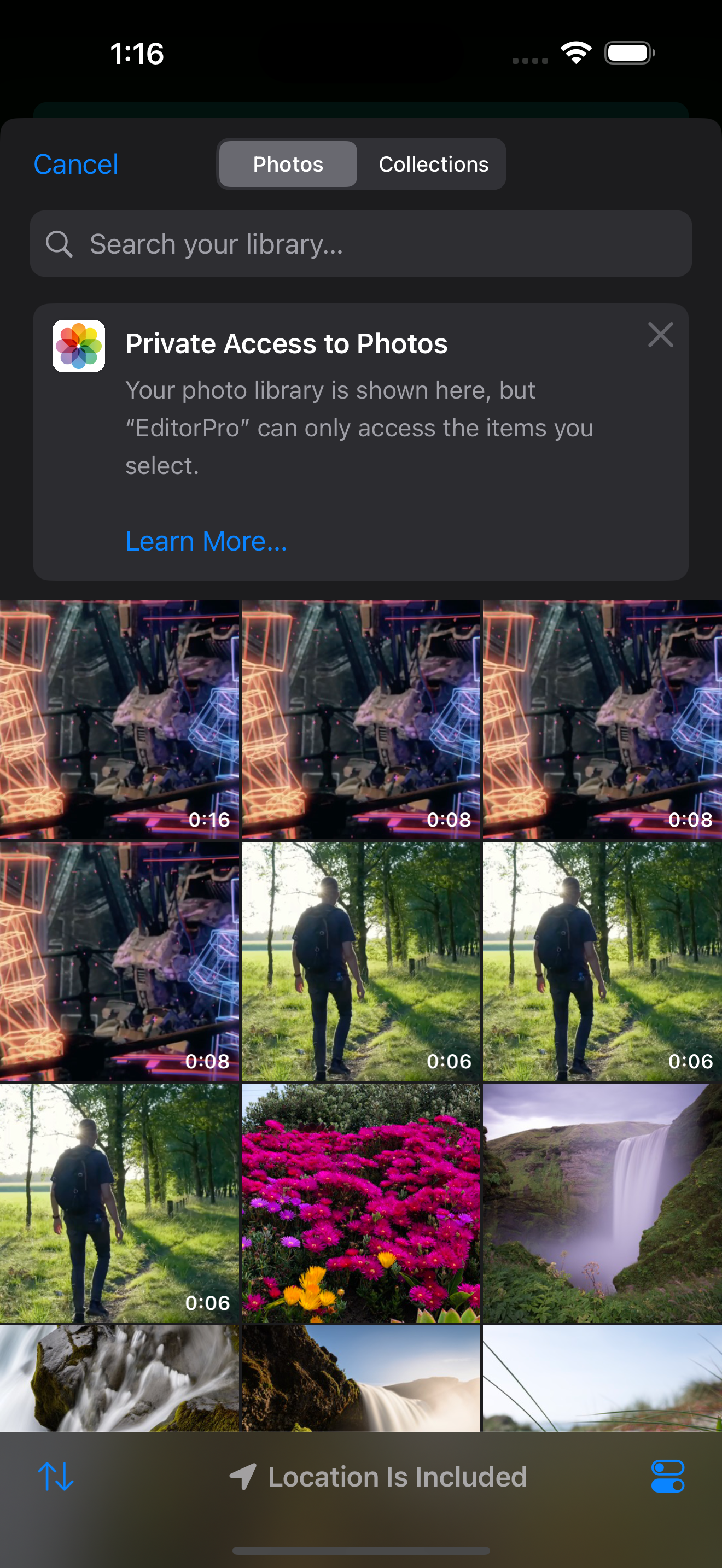
Tap each cell to add a photo or video from your library. You can mix photos and videos in the same collage. For the best result, use clips that are roughly the same length, or plan to trim the longer one down. Each cell has its own trim controls so you can fine-tune the in and out points.
Step 4: Trim and mute individual cells
Tap a cell to see its options. You can trim the clip to adjust where it starts and ends, and you can mute the audio on any cell. This is useful when you have two videos with audio and only want one soundtrack playing. Most people mute the reaction clip and keep the original video's audio, or vice versa.
Step 5: Set the background color
If your clips do not fill the entire cell, the space around them will show the background color you choose. Pick a color that blends with your content, or go with black for a clean, neutral look. This keeps the collage looking intentional rather than unfinished.
Step 6: Choose what happens when clips differ in length
Videos in different cells often have different durations. EditorPro gives you four options for how to handle the shorter clip when the longer one is still playing:
- Loop: the shorter clip starts over from the beginning.
- Freeze: the shorter clip holds on its last frame.
- Blank: the cell goes empty.
- End at Shortest: the entire collage stops when the shortest clip finishes.
For reaction videos, Loop or End at Shortest are usually the cleanest choices. For before-and-after comparisons, Freeze works well so the viewer can still see the "after" while the "before" finishes.
Step 7: Export to Project and share
Once your collage looks right, tap Export to Project. This renders the collage as a single video clip on your timeline. From there, you can add a transition at the start or end, layer on some background music, add text overlays, or export it directly.
When you are ready to share, tap the share icon in the top toolbar. Free users can export at 720p or 1080p with a small watermark. If you post frequently and want clean, watermark-free exports (plus 4K resolution), Pro at $2.99/month or $14.99/year removes that limit.
Tips for a better side-by-side video
- Match the aspect ratio. If you are posting to Reels or TikTok, set the collage to a 9:16 aspect ratio before you export so it fills the screen. You can change the aspect ratio from the editor after exporting the collage to your timeline.
- Keep one audio source. Two audio tracks playing at once sounds messy. Mute the cell you do not want to hear and let the other one carry the sound.
- Trim to the same length when possible. Two clips of equal duration feel more balanced. If they are different lengths, pick the short-clip behavior that matches your intent.
- Add text labels. A quick text overlay on each cell (like "Before" and "After" or "Expectation" and "Reality") helps the viewer understand the split instantly. EditorPro has 13 text styles built in, from plain to neon to glitch.
- Use a filter on both cells. Applying the same filter to both clips ties them together visually. Try a cinematic look like Blockbuster or a social preset like Reels Magic so both sides feel like one video, not two stuck together.
Why use a collage instead of just cropping?
You might wonder why you need a collage tool at all. Could you not just crop two videos and stack them? Technically yes, but it is painful. Cropping does not play both clips at the same time, and manually syncing two tracks on a timeline is tedious on a phone. A purpose-built collage tool handles the layout, the cell sizing, the audio, and the duration mismatch for you. It is the difference between a 30-second edit and a 10-minute struggle.
Common use cases for side-by-side video
- Reaction videos: your face on one side, the original clip on the other. This is the format that made reaction content popular on TikTok and YouTube Shorts.
- Before and after: fitness progress, home renovations, makeup looks, or editing comparisons. Side by side makes the change obvious.
- Compare two takes: if you filmed two versions of a scene and want to see them together, a collage is the fastest way.
- Trend templates: many TikTok trends use a two-cell layout. Pick the trend's layout, drop in your clips, and you are done.
Putting two videos side by side on iPhone does not require a desktop editor or a complicated workflow. With the Create Collage tool, you can build a split-screen video in under a minute, trim each clip, choose how to handle duration differences, and export one combined file ready to share.
Make a side-by-side video on your iPhone
EditorPro's Create Collage tool handles the layout, trimming, and audio so you can focus on the content. Free to download, made for iPhone.
Download on the App Store