
How to Make a Wedding Video on iPhone
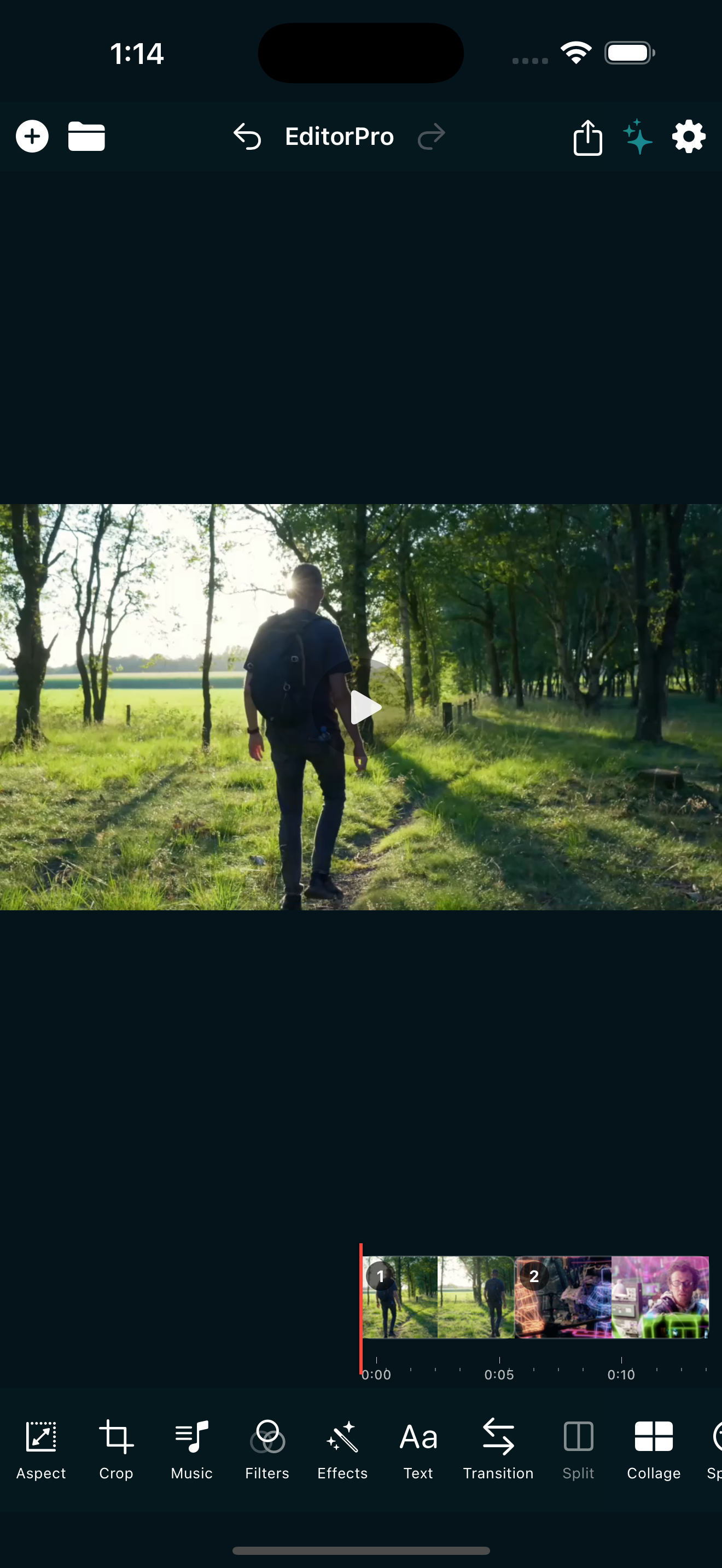
You went to a wedding, you filmed a dozen clips, and now those moments are sitting in your camera roll waiting for something. The good news is that your iPhone is more than capable of turning those clips into a wedding video worth sharing. You do not need a desktop, paid software, or a background in film. You need a plan and the right tools.
Here is a practical guide to making a wedding video on iPhone, from picking the right clips to exporting a polished final cut.
1. Choose your moments before you edit
Before opening any editor, skim your camera roll and pick the clips that tell the story. A wedding video is not about including every second. It is about choosing the moments that capture the feeling of the day.
A good structure to follow:
- Setup: getting ready, the venue, guests arriving.
- Ceremony: the walk down the aisle, the vows, the kiss.
- Celebration: the reception, toasts, dancing, the send-off.
Aim for 10 to 15 clips total. If you have more, trim each one to its best few seconds. A wedding video that is 30 to 60 seconds long works perfectly for Reels and TikTok. A longer 2 to 3 minute cut works for family sharing.
2. Import your clips into a timeline editor
Open EditorPro and start a new project. Tap the + button in the top bar to import your photos and videos. You can bring in up to 10 items at a time, and photos automatically become 5-second clips. If you have more than 10, import in batches and arrange them on the timeline afterward.
Once everything is on the timeline, drag clips to reorder them. Long-press a clip and drag it to the right position. This is the stage where you lock in the narrative flow: setup, ceremony, celebration.
3. Trim and split to keep it tight
Raw wedding clips tend to be long. A 30-second clip of the vows probably has 5 seconds of gold and 25 seconds of shuffling. Trim each clip to its best moment.
Tap a clip and drag the trim handles to set the in and out points. If you want to keep a moment from the middle of a clip, use Split to cut it at the playhead, then trim the pieces you do not need. You can read more about this in our guide on how to trim and split a video on iPhone.
The goal is momentum. Every clip should feel like it needs to be there. If a clip does not move the story forward, cut it.
4. Set the right aspect ratio
If you are posting to Reels or TikTok, switch to a 9:16 portrait aspect ratio so your video fills the screen. Tap Aspect in the bottom tool strip and choose Portrait (9:16).
If your clips were shot in landscape, you will see black bars at the top and bottom. Use a fill mode to handle this: Blur Background keeps the full frame visible while filling the empty space with a soft, blurred version of the video. It looks elegant and works especially well for wedding footage. You can learn more in our guide on how to make a video vertical for Reels and TikTok.
For a family share that will be watched on a TV or laptop, keep the original landscape aspect ratio. The 16:9 option is the standard widescreen shape.
5. Add a romantic filter
Color grading is what makes a wedding video look like a film instead of a phone recording. EditorPro has 138 filters across 8 categories, all free, and several of them suit wedding footage beautifully.
Tap Filters in the bottom tool strip and try these:
- Romance (Cinematic category): warm tones, soft contrast, naturally suits skin tones and golden-hour light.
- Romantic (Mood category): a gentler, dreamier wash that flatters indoor and evening footage.
- Golden (Modern/Trending category): adds a warm, sun-kissed glow that works for outdoor ceremonies.
- Dreamy (Mood category): lifts shadows and softens highlights for a hazy, nostalgic feel.
Each filter has an intensity slider from 0 to 100 percent. Start around 50 percent and adjust to taste. You can apply a filter to one clip or toggle the scope to apply it across all clips for a consistent look.
6. Use transitions that fit the mood
Transitions smooth the cuts between clips and add polish. For a wedding video, subtle is almost always better than flashy.
Tap Transition in the bottom tool strip and try these:
- Cross Dissolve: the classic blend from one clip to the next. It is the most natural transition for wedding footage.
- Film Dissolve: slightly softer than cross dissolve, with a film-like fade.
- Fade to White: works beautifully between the ceremony and celebration sections, suggesting a fresh start.
- Light Leak: adds a warm, photographic flash between clips that feels nostalgic and romantic.
Set a duration of around 1 second for dissolves and 0.5 seconds for fades. You can apply a transition to a single clip boundary or to all clips at once.
7. Add music that matches the emotion
Music is what turns a sequence of clips into a wedding video. Tap Music in the bottom tool strip and switch to Background Music mode.
EditorPro includes 9 background music tracks. For a wedding video, Romantic Guitar and Fresh Couple Romance are the most fitting choices. You can also import your own music from your library if you have a specific song in mind.
Set the music volume so it sits underneath the video without overpowering it. Around 40 to 60 percent is usually right. If any of your clips have important ambient audio (vows, toasts, laughter), mute the background music during those moments by trimming the music track, or lower the music volume and raise the clip audio.
For more on audio, see our guide on how to add music to a video on iPhone.
8. Add text for context and emotion
A few well-placed text overlays can elevate a wedding video. Tap Text in the bottom tool strip to add captions, dates, names, or a short message.
Ideas for wedding text overlays:
- The wedding date at the start.
- The couple's names in an elegant font.
- A short quote from the vows.
- A simple "Forever" or "Best Day Ever" over the final clip.
EditorPro offers 13 text styles. For weddings, Neon and Shadow add a soft glow that feels romantic. Typewriter works well for a vintage, documentary feel. Position text by dragging it on the preview, pinch to resize, and two-finger rotate if needed.
9. Export and share
When your edit is finished, tap the share icon in the top toolbar. Choose your export quality:
- 1080p HD is the sweet spot for social media and family sharing.
- 4K Ultra is available with Pro and gives you the best quality for larger screens.
Free exports include a small watermark. If you want a clean copy for a keepsake, upgrading to Pro removes the watermark and unlocks 4K. Pro is $2.99 per month or $14.99 per year with a 7-day free trial on the annual plan.
The exported video saves directly to your Photos library, so you can share it to Instagram, TikTok, YouTube, or send it to family group chats right away.
Quick alternative: Auto Reel
If you want a wedding video in under a minute and do not want to edit manually, try Auto Reel. On the start screen, tap Auto Reel, pick the Romantic mood, select 5 to 15 of your best wedding photos and clips, and let it build. EditorPro automatically adds Ken Burns motion, a romantic filter, transitions, and mood-matched background music.
You get one Auto Reel per week on the free plan, which is plenty for a single event. Tap Use This Reel to load it onto the timeline if you want to make any adjustments before exporting.
Make a wedding video worth keeping
EditorPro gives you everything you need to edit a wedding video on iPhone: filters, transitions, music, text, and a timeline editor that is easy to pick up. Free to download, made for iPhone.
Download on the App Store